

Agents
Create chat agents, choose when they reply, add optional input and output schemas, and debug their runs.
On this page
An agent is a reusable AI worker. You give it instructions, a model and tools. People talk to it in team chat with an @mention or a direct message. Workflows can also run it in an agent step. You manage agents on the Agents page in the Console.
Agents are not the same as Autopilot. Autopilot is the assistant that helps you operate the Console. See Autopilot and chat.
Who this is for: people who build and look after agents. To create or edit an agent you need the project_contributor role or higher. To delete one you need project_admin. Without permission, the buttons are greyed out.
What you will do on this page: create an agent, choose when it replies and who can see it, add optional input and output schemas, and debug one of its runs.
The Agents page
Agents lists the agents in the project on the left and the selected agent's details on the right: its name, "Configure how this agent replies in team chat.", and Recent sessions. Along the top are Team chat, Browse marketplace and Create agent. Each row in the list has three icon-only buttons: open in team chat, edit and delete.
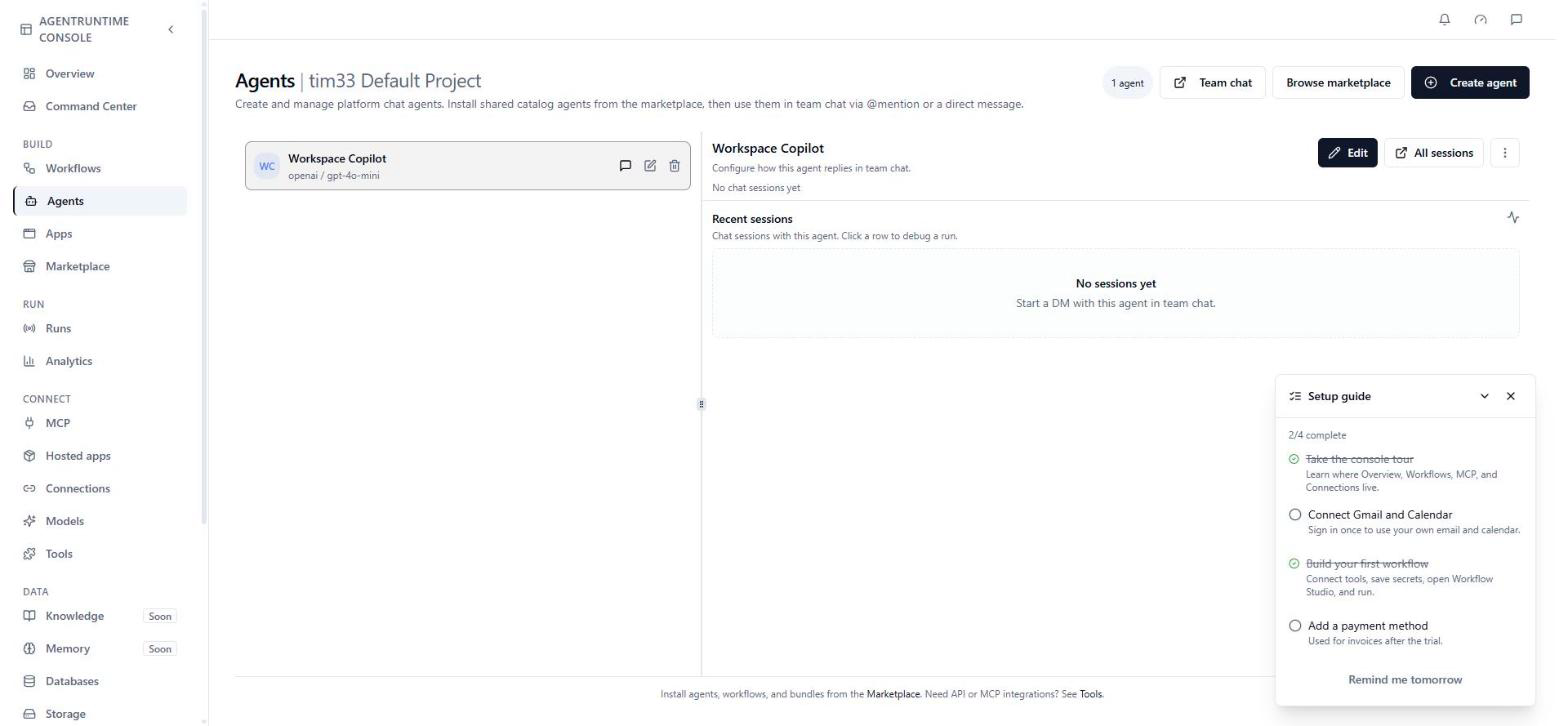
A new workspace already has one agent, Workspace Copilot, provided by AgentRuntime. It is the agent behind the Autopilot chat panel, and it is not something you created. Its row has a delete icon, so be careful before you click it. Team chat has an arrow icon because it opens a different app, space.agentruntime.io, in a new tab. A page with No sessions yet sends you there to start a direct message.
An agent here is a chat assistant that people reach in team chat. In a workflow the same agent is a step (see Step types). In Workflow Studio you pick it as a Catalog agent on an Agent step.
Create an agent
- Open the form
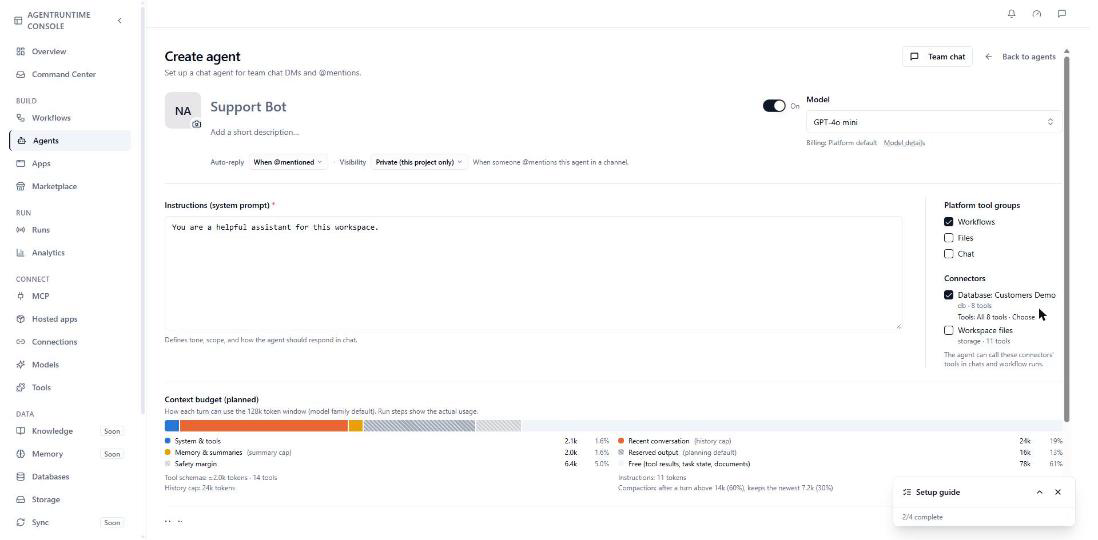
In the Console sidebar, click Agents, then Create agent. The dialog says "Set up a chat agent for team chat DMs and @mentions."
- Name it
Enter a Display name, such as
Support Bot. It is required. Add a short description if you like. - Write the instructions
Fill in Instructions (system prompt). It is required. It defines the agent's tone, its scope, and how it should respond in chat. A new agent starts with "You are a helpful assistant for this workspace."
- Set the options
Pick a Model and an API key. Choose Auto-reply and Visibility. See below. Optionally tick Platform tool groups and Connectors.
- Create it
Click Create agent. You should see "Agent created" and the agent in the list.
| Field | What it does |
|---|---|
| Display name | The agent's name. Required. |
| On or Off switch | Turns the agent on or off. A turned-off agent shows a Disabled badge in the list. |
| Model and API key | The model the agent uses and which key pays for it. See LLM providers. |
| Auto-reply | When the agent replies in channels. See Auto-reply. |
| Visibility | Whether the agent is private to this project or public. See Visibility. |
| Instructions (system prompt) | What the agent is and how it behaves. Required. |
| Platform tool groups | Built-in tool groups the agent can use: Workflows, Files and Chat. |
| Connectors | The connectors whose tools the agent can call in chats and workflow runs. For a connector that uses an account, choose Shared account or Each person's own. |
| Input & output schemas | Optional. See Input and output schemas. |
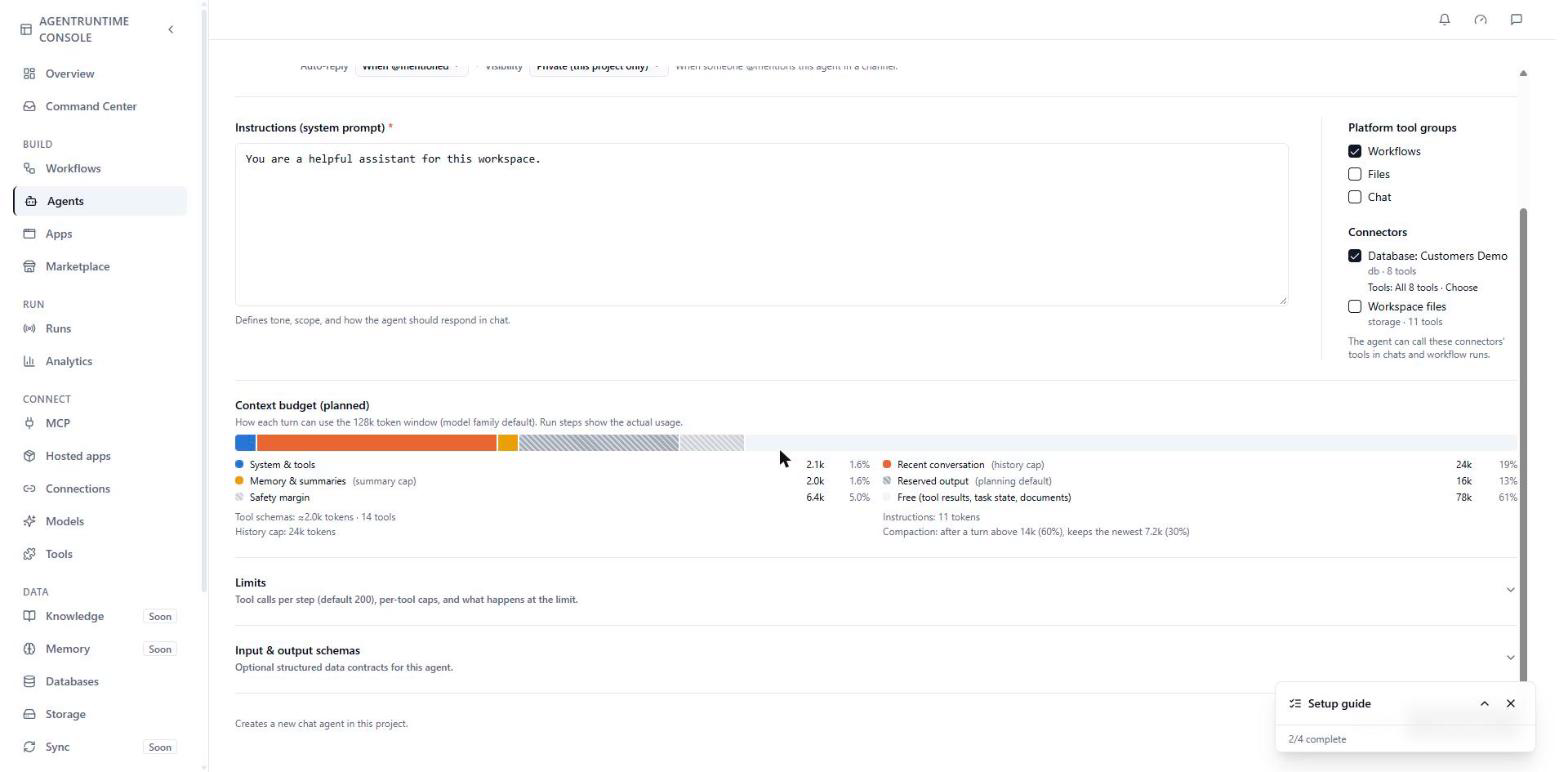
The form also shows Context budget (planned), which estimates how much of the model's context window the agent uses.
To change an agent later, select it in the list and click Edit. Click Save changes. You should see "Agent updated". Changes apply to new messages in team chat. To delete an agent, open the ⋮ menu in the agent's header and click Delete agent.
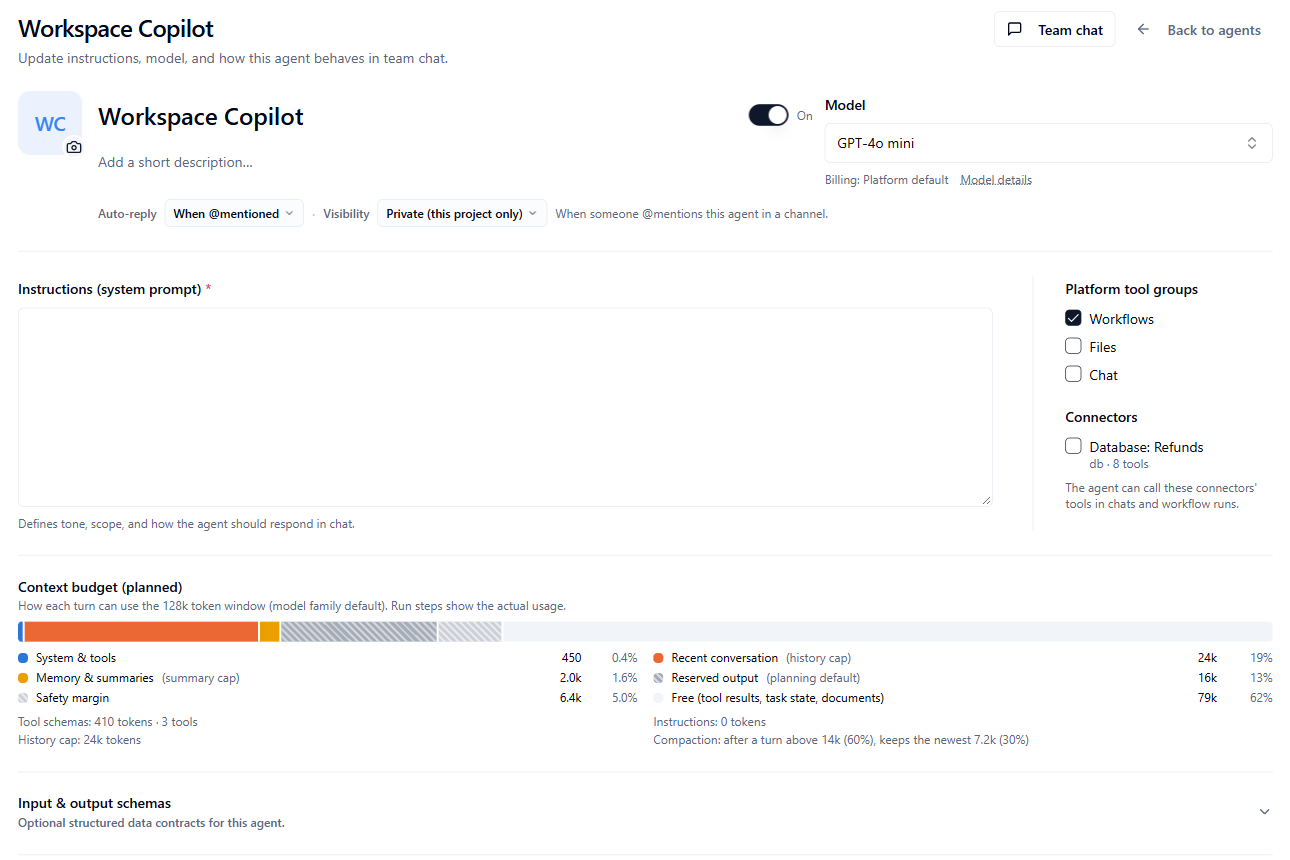
Auto-reply
Auto-reply sets the agent's default for when it replies in a channel. The control is labelled Auto-reply in channels. The choices are:
| Choice | The agent replies |
|---|---|
| When @mentioned | When a message @mentions it. This is the default for a new agent. |
| Always | To every message in the room |
| Never | Not on its own |
Visibility
Visibility has two choices:
| Choice | Meaning |
|---|---|
| Private (this project only) | The agent is for this project. This is the default. |
| Public (show on Marketplace) | The agent is marked public. |
Choosing Public does not list the agent by itself. To list it in the Marketplace, open the agent and click Publish to catalog.
Input and output schemas
Open Input & output schemas at the bottom of the form. It says "Optional structured data contracts for this agent." It opens by itself for an agent that already has a schema. It holds two editors, Input schema (optional) and Output schema (optional).
For each field, click Add field and fill in:
| Setting | What to enter |
|---|---|
| Name | The field name |
| Type | String, Integer, Boolean, Number, Array or Object |
| Optional | Whether the field can be left out |
| Description | What the field holds |
The Input schema describes structured input for the agent. The Output schema describes the fields the agent must reply with. In a workflow, an agent step whose agent has an output schema puts each field on the step result, so later steps can use it. See Step types.
Limits
Limits stop an agent that is stuck in a loop from running for ever. They are a safety net, not a budget to tune tightly: the defaults let an agent do a lot of work in one step. Open the agent and find the Limits section.
| Setting | What it does |
|---|---|
| Max tool calls per step | How many tool calls one agent step may make. Leave it empty for the default, 200. Every call counts, even when the agent makes several at once. |
| Per-tool limits | Cap one tool, for example a paid search tool at 3 calls. Click Add a tool limit, pick or type the tool, and enter Max calls. When a tool reaches its cap, the agent is told so and carries on with its other tools; the step does not fail. Calls past the cap still count toward Max tool calls per step. |
| When the limit is reached | Pause and ask (default), Fail, or Continue automatically (up to a number of times you set in Continue up to, 3 by default). |
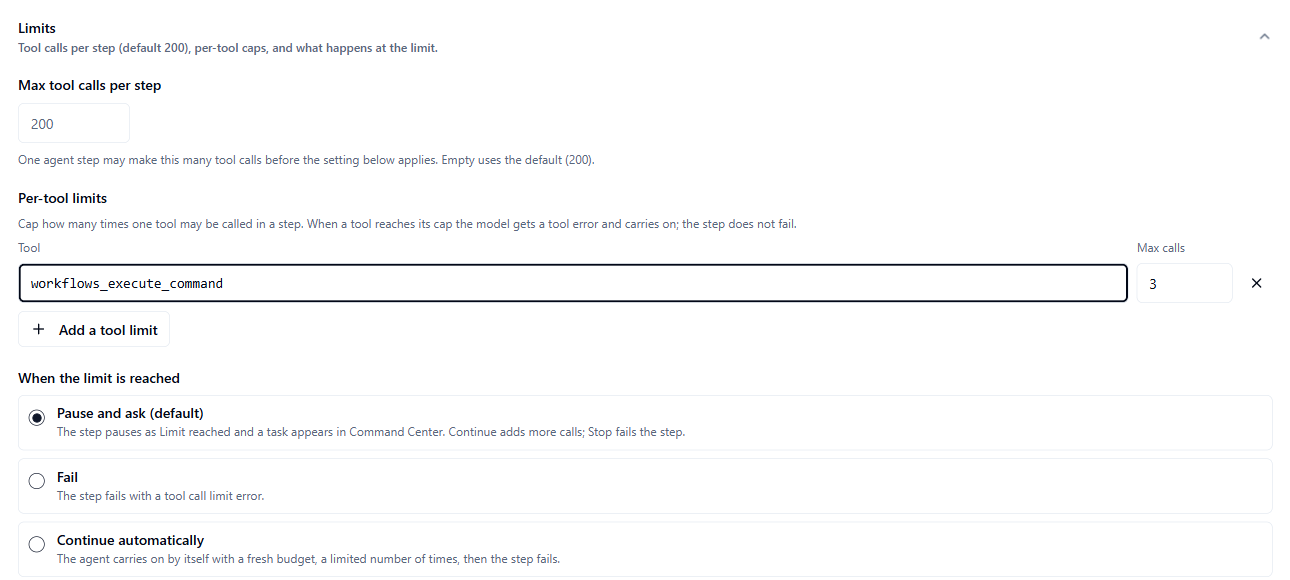
The counts apply to one agent step. A new step, or the same step in the next run, starts again at zero.
When an agent reaches its limit
With Pause and ask, the step does not fail and keeps everything it has done so far. A Tool call limit reached task appears in Command Center:

- Continue gives the agent more calls (you can change how many) and it picks up exactly where it stopped. Nothing runs again.
- Stop fails the step. You can add a reason.
The run's events show Tool call limit reached and, after a Continue, Continued with the number of calls added.
An agent step inside a for_each or while loop cannot pause. It fails when it reaches the limit, whatever you chose.
See an agent's sessions
Select an agent in the list. The panel on the right shows Recent sessions: up to 15 of the agent's recent chat sessions. Each row shows a status, the chat it belongs to, and when it started.
| Status | Meaning |
|---|---|
| Reply in progress | The agent is working on a reply. |
| Turn complete | The agent finished its turn. |
| Waiting for reply | The run is paused and waits. |
| Failed | The run failed. |
| Stopped | The run was stopped. |
Each row has the chat icon (Open in team chat) and a Debug button. All sessions opens the runs list on the Runs page, filtered to this agent. A new agent shows No sessions yet. Start a direct message with it in team chat.
Debug an agent run
Click a row, or click Debug. The Agent run debugger opens in a side panel. Click Open full debugger at the bottom of the panel to open the same view as a page, titled Agent run and the agent's name. Its address is /agents/<agent id>/runs/<run id>. You can also open /agent-runs/<run id> directly. Back returns you to Agents, or to the runs list on the Runs page if the page has no agent.
The top of the debugger shows the agent's name, the run ID, the run's status, and when it started. If the run has a problem, such as a failure, a red box describes it. While the run is active, the top also shows the controls to pause, resume or stop it.
Two buttons sit at the top right:
- Open in chat opens the conversation in team chat in a new tab. It appears when the run belongs to a conversation.
- Copy run id copies the run's ID. You should see "Run ID copied". Give it to support if you need help.
Four tabs show the details:
| Tab | What it shows |
|---|---|
| Timeline | The run's events, with a time and a short summary for each. Tasks waiting for a person appear above them under Human review. It shows up to 100 events and refreshes while the run is active. An empty run says "No run events yet." |
| Tools | One entry for each tool the agent called, with the tool's name, when it ran, and a short summary. If there are none, it says "No tool calls recorded for this turn." |
| Context | Session details such as session_mode, conversation_id, agent_id, chat_turn_id, source and model_ref. Only the ones the run has are shown. Otherwise it says "No session context on this run." |
| Raw | The events, the context and the run as JSON, for support or for your own tools |
Only runs that belong to an agent, to a conversation, or that a chat started have a Debug button.
Common problems
| Problem | What to try |
|---|---|
| Create agent is greyed out | You need the project_contributor role or higher. |
| The agent never answers in a channel | Check Auto-reply. If it is Never, the agent does not reply on its own. With When @mentioned, @mention the agent. Also check that the agent is On. |
| The agent is public but not in the Marketplace | Open the agent and click Publish to catalog. |
| A session has no Debug button | The run does not belong to an agent or a conversation. |
| The debugger page says it could not resolve the workflow | Open the run from Agents or Runs. Or add workflow_id to the address. |
| The Timeline says "No run events yet." | The run may have just started. The tab refreshes while the run is active. |
Next steps
- Autopilot and chat: the Console assistant, and Open in IDE
- Step types: run an agent from a workflow
- Connections: who can use an account an agent calls
- LLM providers: models and API keys
- Conversation sessions: a chat that runs one workflow run across many messages