

Console tour
A map of every item in the Console sidebar, with a one-line explanation and a link to the guide for each.
On this page
The sidebar on the left is your map of the Console. This page lists each item in the order you see it and points to the guide for it.
Who this is for: anyone new to the Console who wants to know what each sidebar item is for.
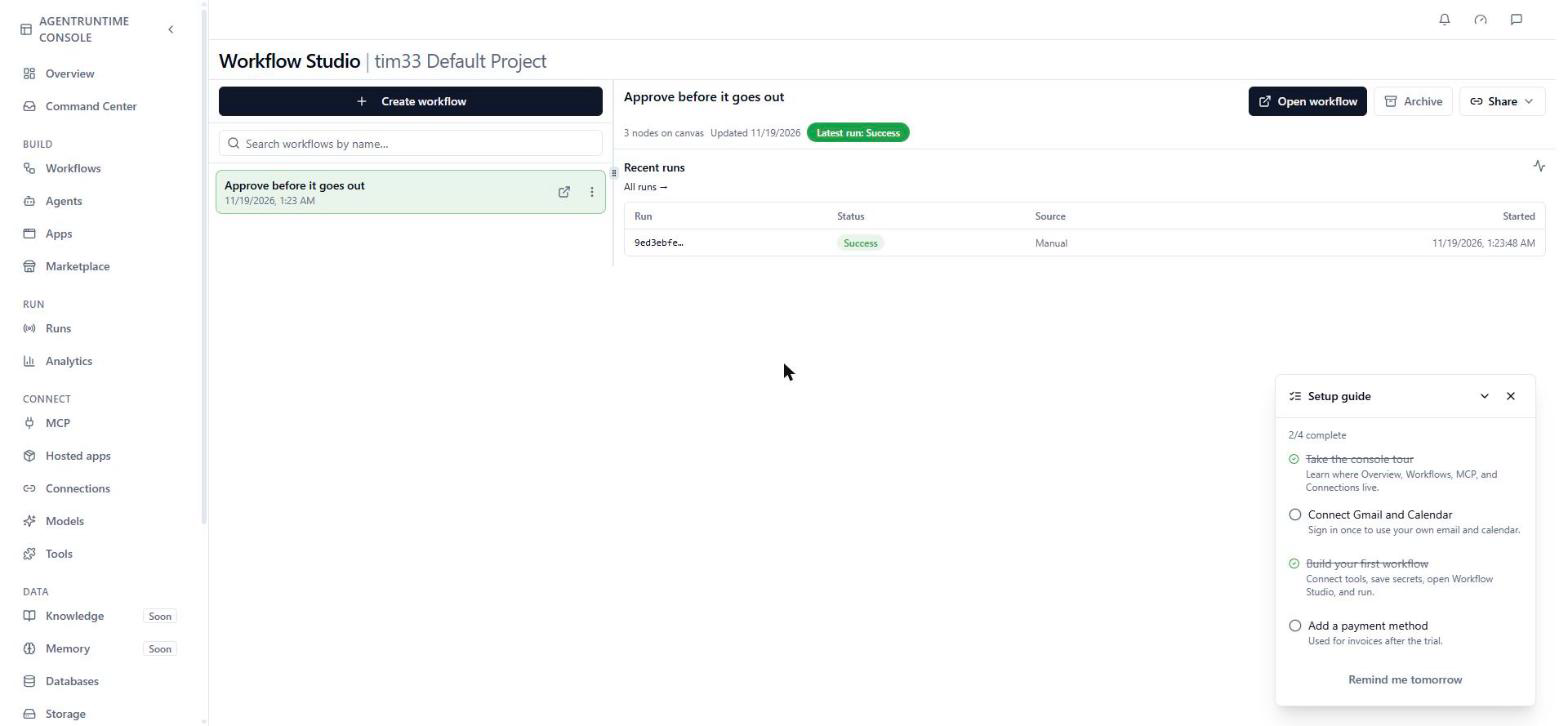
At the top
| Item | What it is | Guide |
|---|---|---|
| Overview | Your home page. It shows Get started until your first successful run, then your workspace metrics. | Run your first workflow |
| Command Center | The inbox for tasks that wait for a person, and for runs in progress. A badge shows how many need you. | Command Center |
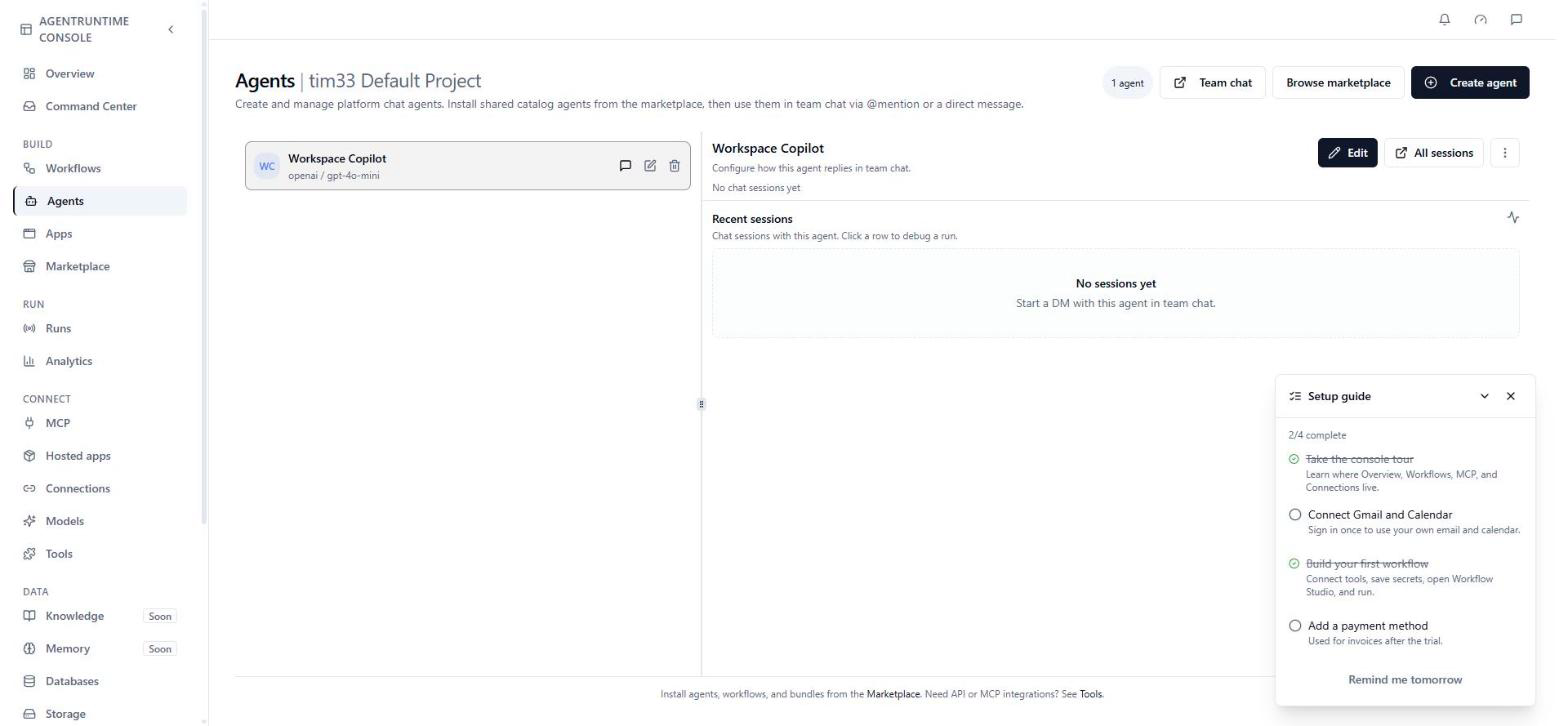
Build
| Item | What it is | Guide |
|---|---|---|
| Workflows | Create, open, share, and archive workflows. Opens Workflow Studio. | Workflow Studio, Create a workflow |
| Agents | AI agents that your workflows and chat can use. | Agents |
| Apps | Simple pages, such as request forms and approval screens, built on your workflows. | Apps |
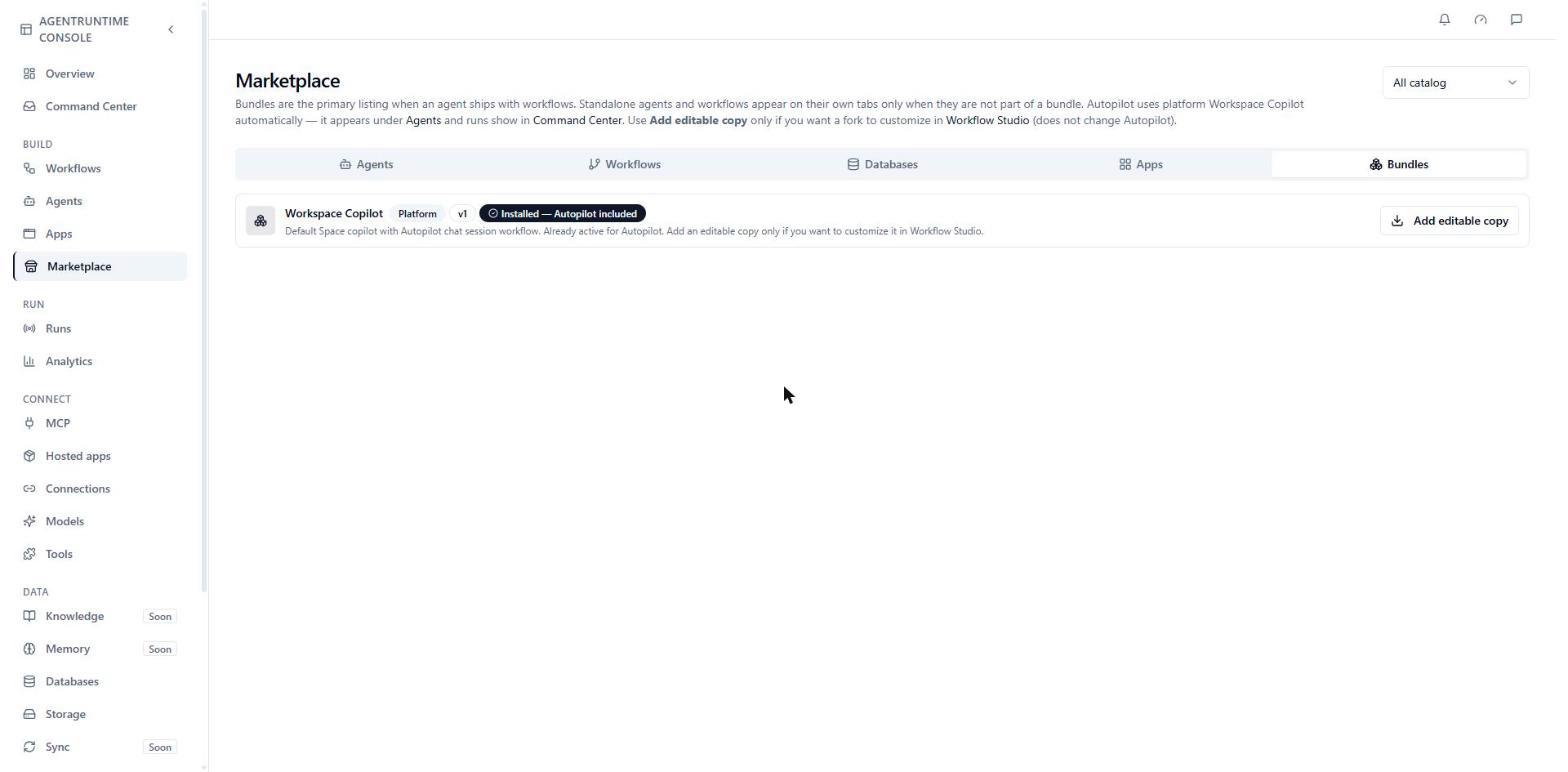
| Marketplace | Ready-made workflows and other packages to install. | Apps, Feature availability |
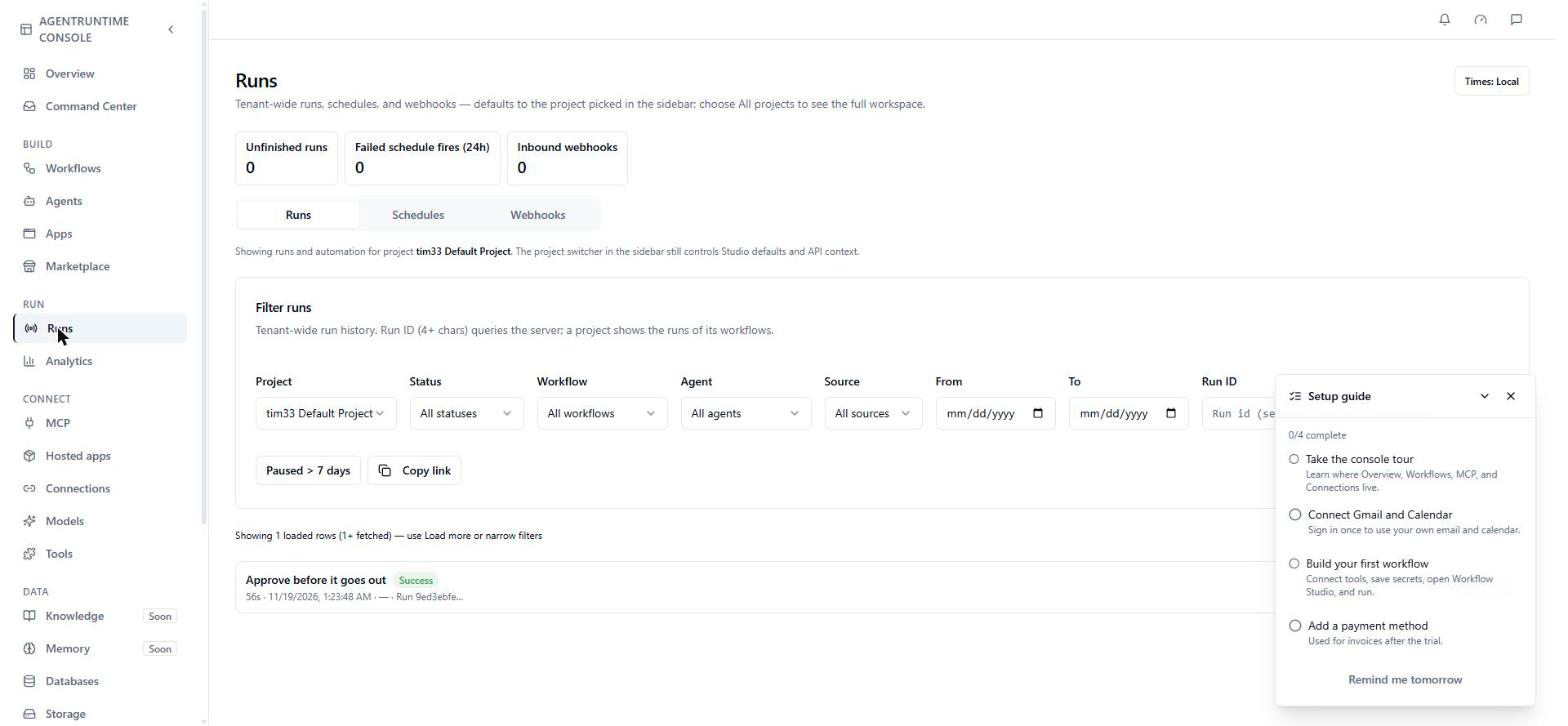
Run
| Item | What it is | Guide |
|---|---|---|
| Runs | Every run in the selected project, with filters and a Times toggle for local or UTC time. | Runs and Command Center, Operate |
| Analytics | Usage and results over time. | Analytics |
Connect
These four pages are close relatives: each one sends you to another. Start with the guide on how connecting works.
| Item | What it is | Guide |
|---|---|---|
| MCP | The connectors installed in your workspace, with their settings. | MCP instances |
| Hosted apps | A second view of the same area for managed third-party apps. | Hosted apps |
| Connections | Saved sign-ins and credentials for outside services. | Connections |
| Models | The AI models your agents and workflows can use, and where their keys come from. | LLM providers |
| Tools | A library of the tools your connectors provide. | How connecting works |
Data
| Item | What it is | Guide |
|---|---|---|
| Knowledge | Marked Soon. Not available yet. | Feature availability |
| Memory | Marked Soon in the Console. Memory works through the API only. | Memory |
| Sync | Marked Soon. Not available yet. | Feature availability |
| Databases | Tables of structured data your workflows and agents can read and write. | Databases and storage |
| Storage | Files your workflows and agents can use. Deleting a file asks for no confirmation. | Databases and storage |
Knowledge, Memory, and Sync carry a Soon badge. Do not plan around them yet.
Admin
| Item | What it is | Guide |
|---|---|---|
| Secrets | API keys and passwords you keep for your agents and tools. It appears only when you have access. | Settings |
| Billing | Plan, credits, payment method, and invoices. | Billing and credits |
| Settings | Workspace name, members, API keys, webhooks, audit log, and your own access. | Settings, Invite a teammate |
The sidebar can also show Work, and Referrals when the referral program is on for your workspace. Which pages appear depends on what is turned on for your workspace. See Shortcuts and links.
The top bar and the project switcher
Three icons sit at the top right with no text labels: the bell, the credits icon, and the speech bubble. The bell and credits icon are explained in Notifications and the credits panel. The speech bubble opens the chat panel: see Autopilot and chat.
Under the sidebar groups, the Working in switcher chooses the workspace and the project. Every page shows the project you pick there. On a short window it can sit below the visible part of the sidebar: scroll down to find it.
Your own profile has its own page: see Your profile and account.