

Create a workflow from a recipe or from scratch
Start a new workflow from a recipe or a blank canvas, and what the Copilot box on an empty canvas can and cannot do today.
On this page
You can start a workflow from a ready-made recipe or from a blank canvas. Both start from Create workflow on the Workflows page.
Who this is for: anyone creating a workflow after the first-run recipes. For your first workflow, see Run your first workflow.
Start from a recipe
- Click Create workflow
Open Workflows in the sidebar and click Create workflow. The Find a workflow recipe dialog opens.
- Find a recipe
Search by goal in Search by goal — approval, agents, fetch, handoff…, or use the chips All, Runs in order, Optional agents, and Agent handoffs. The dialog lists 7 recipes, each marked Ready. Click one to see Good for, a Shape preview of its steps, and Full graph.
- Create it
Click Create workflow. Cancel closes the dialog.
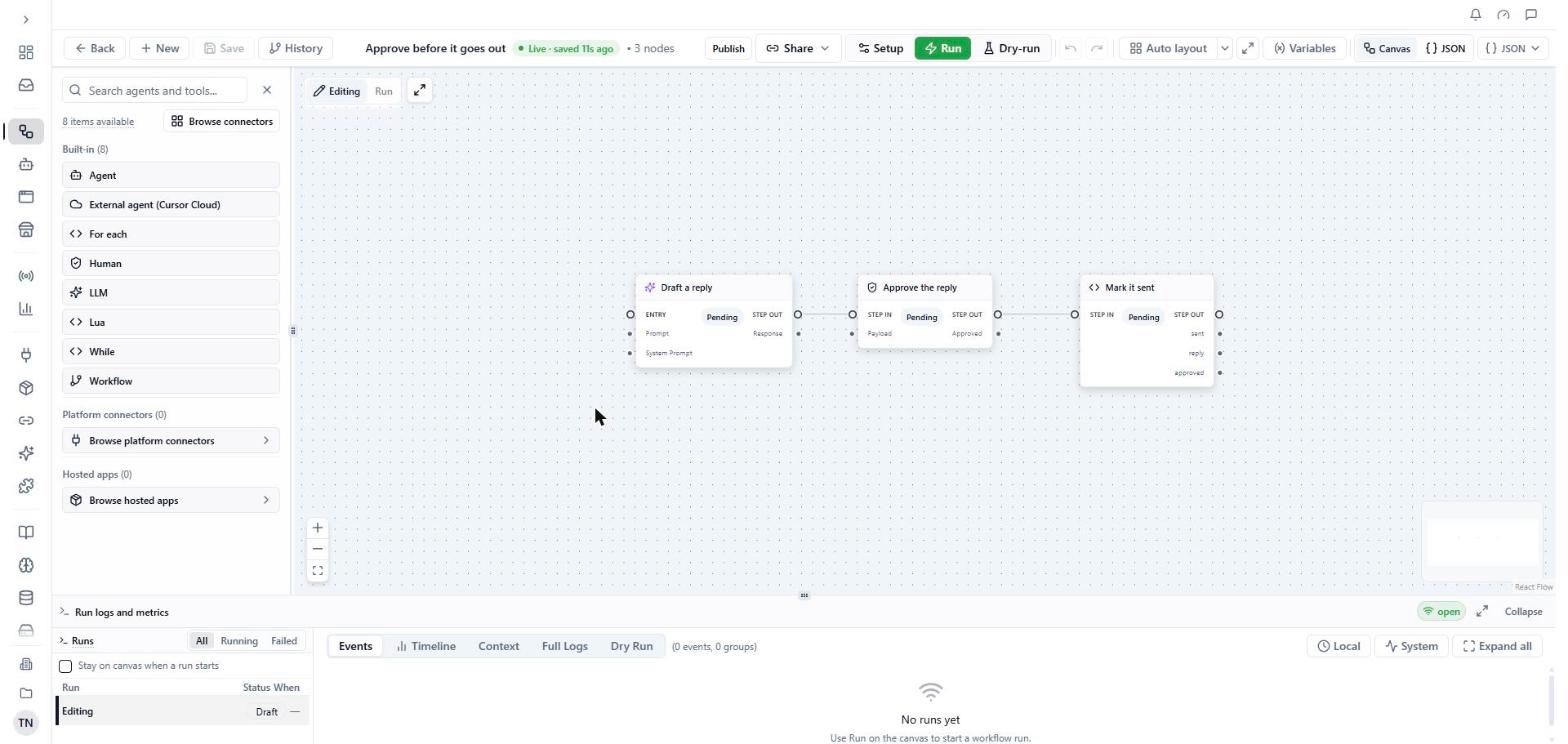
You should see: the workflow open in Workflow Studio with its steps on the canvas.
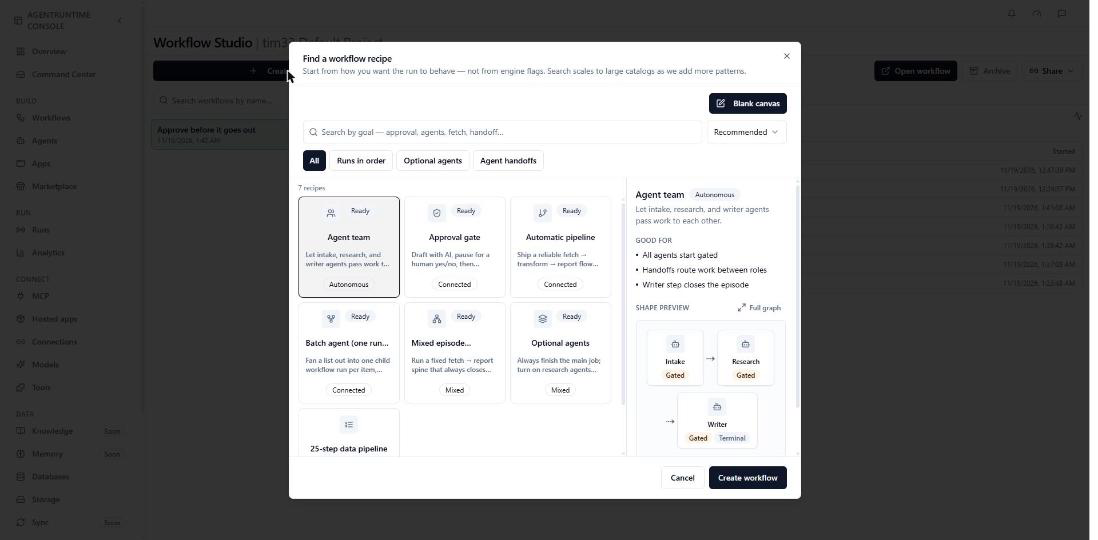
The seven recipes are Agent team, Approval gate, Automatic pipeline, Batch agent (one run per item), Mixed episode, Optional agents, and 25-step data pipeline.
The recipes here are named for the pattern, not for a business job, and are different from the three on the Get started page (Approve before it goes out, Sort incoming requests, Ask an agent). The badges Autonomous, Connected, and Mixed, and the tags Gated and Terminal on the preview, are not explained in the dialog. Step types covers the building blocks.
Start from a blank canvas
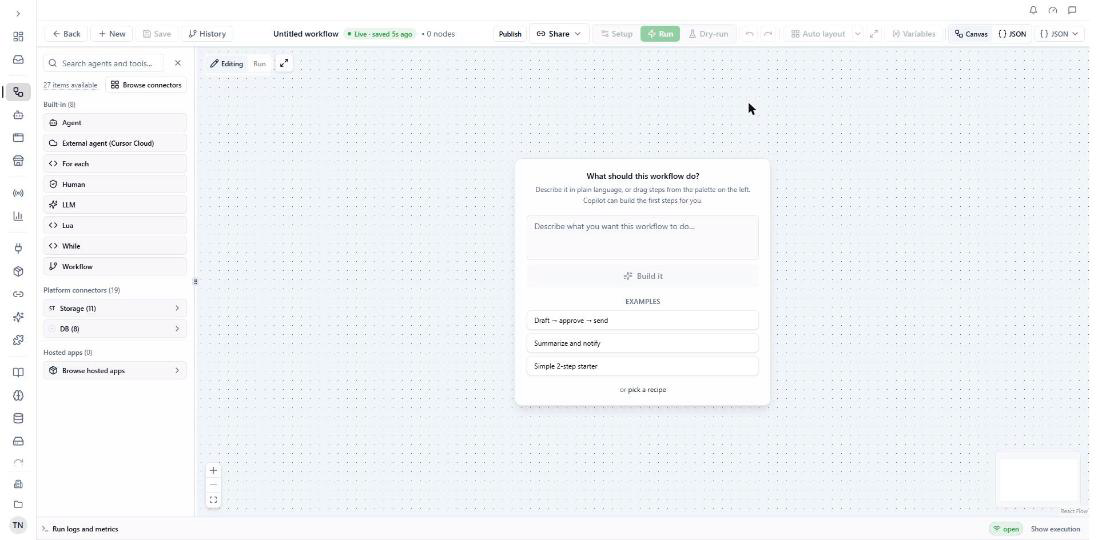
Click Blank canvas in the recipe dialog. The workflow opens as Untitled workflow with 0 nodes. The center of the canvas shows a card:
What should this workflow do?
It offers a text box (Describe what you want this workflow to do…), a Build it button, example chips (Draft → approve → send, Summarize and notify, Simple 2-step starter), and or pick a recipe.
Build the workflow by dragging steps from the palette on the left. See Build your first workflow for a complete walkthrough, and Step types for what each step does.
The Copilot box does not add steps yet
Build it and the line "Copilot can build the first steps for you" do not add steps to the canvas today. The Copilot cannot edit the canvas. After you click, the canvas stays empty, even if a message says it is working. The reply in the chat panel may describe a plan or a blueprint to build by hand, or it may leave the canvas for the workflow list.
What to do instead:
- Drag steps from the palette onto the canvas.
- Pick a recipe, either from the or pick a recipe link or from Create workflow.
- Use the Copilot's reply as a plan, then build the steps yourself.
The example chips send their text to the Copilot immediately, before you can edit it. Type your own sentence in the box if you want to see the plan first. See Autopilot and chat.
Each failed Build it can leave an extra empty Untitled workflow in the Workflows list. Archive it from the list if you do not need it.