

Dry-run before you publish
Check a workflow for problems with Dry-run before you publish or share it, and why the steps show Success even though nothing ran.
On this page
Dry-run checks your workflow for problems without running it. Do it before you publish or share a workflow, and after big edits.
Who this is for: anyone about to publish or share a workflow. The full reference, including how to fix each message, is in Dry-run validation.
Check before you publish
- Click Dry-run
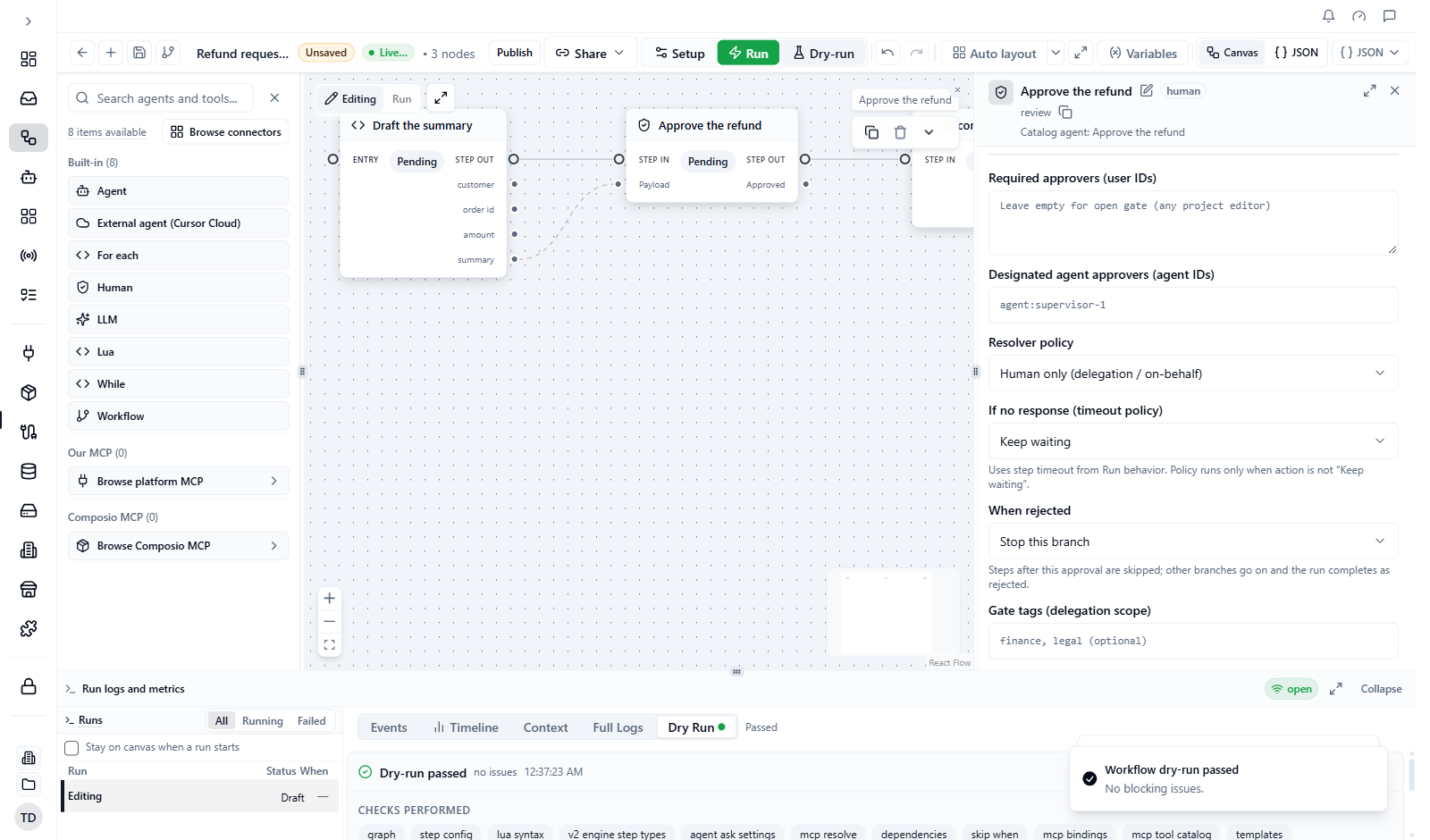
Click Dry-run in the Studio toolbar, next to Run. The button itself gives no feedback, so look at the bottom panel.
- Read the Dry Run tab
The bottom panel switches to the Dry Run tab, marked Passed when there is nothing to fix. It reads Dry-run passed with "no issues" and the time of the check. Copy report and JSON are at the top right.
You should see: under Checks performed, the list of what was checked: graph, step config, lua syntax, v2 engine step types, agent ask settings, mcp resolve, dependencies, skip when, mcp bindings, mcp tool catalog, and templates.
- Fix problems, then publish
If the result says it failed, fix the issues and click Dry-run again. When it passes, click Publish. See Workflow Studio.
Why the steps show Success
After a dry-run the canvas marks every step with a green Success badge. That is the same badge a real run uses, but nothing ran. No model was called, no connected tool was used, and nobody was asked to approve. A dry-run only validates the workflow. To see real results, click Run.
What it does and does not tell you
| A passed dry-run means | It does not mean |
|---|---|
| The steps and links are well-formed. | The workflow produces the answer you want. |
Templates such as {{input.customer}} point at things that exist. | The connected account is signed in or has the right access. |
| The tools and connections the steps use can be found. | A person has approved anything. |
Dry-run is advice: you can still save, run, and publish when it reports problems.
Next steps
- Dry-run validation: every check and message.
- Share a workflow: creating an outside link publishes.
- Workflow Studio