

Keyboard shortcuts and links
Jump to any Console page from the keyboard, edit faster in Workflow Studio, and share links that open a page in the right place.
On this page
This page lists the keyboard shortcuts in the Console and the page addresses (links) you can bookmark or send to a teammate.
Who this is for: anyone who uses the Console every day. Studio shortcuts need the project_contributor role (or higher) in the project, because they edit the workflow. A link opens the page only for people who have access to that workspace and project.
What you will do on this page: open the command palette, edit a workflow without the mouse, send a reply from the keyboard, and build links to runs, tasks and filtered lists.
Open the command palette
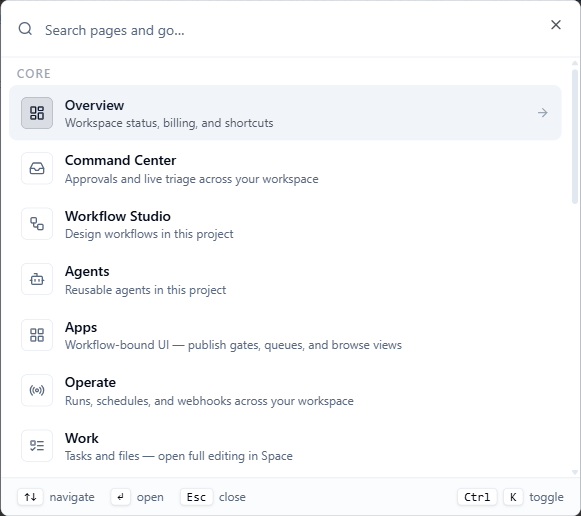
Press Ctrl+K (Cmd+K on a Mac) on any page in the Console. A search box opens with the placeholder "Search pages and go…".
- Open the palette
Press Ctrl+K (Cmd+K on a Mac).
- Type to find a page
Type part of a page name, its short description, or its path, for example
runs. If nothing matches, the palette says "No matching page". - Open it
Use the up and down arrow keys to move, then press Enter. Press Esc to close the palette without going anywhere. Pressing Ctrl+K (Cmd+K) again also closes it.
The palette lists pages only. It has the same pages as the Console sidebar, in the same groups, plus a More group:
| Group | Pages |
|---|---|
| No heading | Overview, Command Center |
| Build | Workflows, Agents, Apps, Marketplace |
| Run | Runs, Analytics |
| Connect | MCP, Hosted apps, Connections, Models, Tools |
| Data | Databases, Storage, plus Knowledge, Memory and Sync marked Soon in the sidebar (not listed in the palette until they are live) |
| Admin | Secrets, Billing, Settings. Secrets shows only when you have access to it; what is inside depends on your role. |
| More | Work, and Referrals when the referral program is on for your workspace |
Which pages appear depends on what is turned on for your workspace.
Workflows opens the last workflow you opened in this browser tab, or the workflow list if you have not opened one. The palette does not search inside pages, so it cannot find a single workflow, run or agent by name.
Workflow Studio shortcuts
These keys work on the canvas in Workflow Studio. Where a key below starts with Ctrl, you can press Cmd instead on a Mac.
| Action | Keys |
|---|---|
| Delete the selected step | Delete |
| Duplicate the selected step | Alt+D |
| Undo | Ctrl+Z |
| Redo | Ctrl+Y or Ctrl+Shift+Z |
| Save now | Ctrl+S |
What each one does:
- Delete removes the selected step and the connections to it. There is no confirmation. Press Ctrl+Z to bring it back. You can also point at a step and click the X in its corner.
- Alt+D adds a copy named like the original with "(Copy)" after it, a little below and to the right of it. The copy does not get the original's connections. It does not work on steps inside a loop.
- Undo and Redo step back and forward through your edits: changes to steps, connections and where steps sit on the canvas, and changes in Setup. Studio keeps up to 50 changes. Edits that come fast, such as typing, count as one change. A workflow you have just opened has nothing to undo. The Undo and Redo buttons in the Studio toolbar do the same thing and are greyed out when there is nothing to undo or redo.
- Save now saves your edits straight away. Studio also saves on its own.
Some rules apply to all of them:
- Backspace does not delete a selected step. Studio blocks it so you do not remove a step by accident. Use Delete.
- When you type in a text box, a code editor or any other field, the keys above do nothing, except the save key. It works there too.
- If you cannot edit workflows, for example with the
project_viewerrole, the editing keys do nothing and the save key shows "View only". - In the Run view of the canvas, or on a published version, the save key shows "Run inspect is read-only" or "Published versions are read-only". See Workflow Studio.
Send a reply from the keyboard
When a task waits for you, press Ctrl+Enter (Cmd+Enter on a Mac) in its text box to send, instead of clicking the button.
| Task | Text box | Sends the same as |
|---|---|---|
| A question from an agent | The answer box ("Your answer") | Send answer |
| A reply task | The reply box | Send |
An answer needs some text. A reply needs text or an attached file when the task requires a reply. On a wide screen, "Ctrl+Enter to send" shows next to the buttons as a reminder. This works wherever the box appears in Command Center: the list, the View panel and the Conversation panel. It does not work in the Reject reason box or in the Correct it box.
App Studio shortcuts
App Studio has its own keys. See Apps.
Share a link to a page
The address of a Console page can carry settings, such as which run is open or which filters are on. Copy the address from your browser, or use a Copy link button where the Console has one. The Console host is https://console.agentruntime.io. In the tables below, text in angle brackets such as <workflow-id> is a value you fill in.
Links carry IDs, not names. To find an ID, open the item in the Console and copy it from the address bar. The sections below say where each one shows up.
Workflow Studio links
Start from the address of a workflow:
https://console.agentruntime.io/workflow/<workflow-id>
Add settings after a ?, and join more than one with &:
| Setting | Values | What it does |
|---|---|---|
run | A run ID | Opens the run panel, selects that run, and switches the canvas to the Run view |
tab | events, timeline, context, logs, dryrun | Opens that tab of the run panel: Events, Timeline, Context, Full Logs or Dry Run. Without tab, it opens on Events. |
version | A whole number such as 3 | Opens published version 3, read-only |
For example, to open a run on its Timeline tab:
https://console.agentruntime.io/workflow/<workflow-id>?run=<run-id>&tab=timeline
- Picking a run in Studio does not change the address. To get a run's full ID, point at the run in the Runs list and click the copy button next to Run ID in the card that opens, or read it on the Context tab. Then build the link as above.
- For a published version, open History, then use Copy link on the version. It gives you the
versionlink.
Command Center links
| Link | What it does |
|---|---|
https://console.agentruntime.io/command-center?tab=approvals | Opens the Needs you list |
...?tab=missed | Opens Missed |
...?tab=active | Opens In progress |
...?tab=failed | Opens Issues today |
...?run_id=<run-id>&workflow_id=<workflow-id> | Opens Needs you and the View panel of that run, when the run has a task waiting for someone. If it has none, Command Center opens as usual. |
Without tab, Command Center opens on the first list that has something in it.
Runs links
Links to the Runs page can carry a tab and filters. The quickest way to get one is to set the filters on the page and click Copy link. To build one by hand, start from:
https://console.agentruntime.io/operate
| Setting | Values | What it does |
|---|---|---|
tab | runs, schedules, webhooks | Opens that tab. Without it, Runs opens. |
project_id | A project ID | Filters to that project. Without it, the Runs page opens on the project picked in the sidebar. |
status | A list of run statuses separated by commas (see below) | Sets the Status filter on the Runs tab |
workflow_id | A workflow ID | Sets the Workflow filter |
agent_id | An agent ID | Sets the Agent filter |
triggered_by | chat, cron, webhook, api or manual | Sets the Source filter |
stale_paused | 1 | Turns on Paused > 7 days. Use it with status=paused. |
from, to | A date and time such as 2026-10-01T00:00:00Z | Limits the runs to a date range |
failed_fires | 1 | On the Schedules tab, opens the Failed schedule fires (24h) list |
To make the Status box show a choice, use one of these values:
| Choice in Status | Value of status |
|---|---|
| In progress | running,pending,queued,starting,draining |
| Paused | paused |
| Unfinished | running,pending,queued,starting,draining,paused |
| Completed | completed |
| Failed / stopped | failed,stopped,cancelled |
For example, runs started by a schedule that failed or were stopped:
https://console.agentruntime.io/operate?tab=runs&status=failed,stopped,cancelled&triggered_by=cron
Links to other pages
| Page | Link | What it does |
|---|---|---|
| Settings | /settings?tab=<tab> | Opens a tab of Settings. Values: general, safeActions, ciSignIn, team, audit, access, delegation, apiKeys, inboundWebhooks, principals, integrations. They match General, Safe actions, CI sign-in, Team & Members, Audit log, My access, Delegation, API keys, Inbound webhooks, Principals and Integrations. Billing has its own page: /billing?tab=plans and /billing?tab=usage open Plans and Usage, and /billing opens Overview. Old /settings?tab=billing, plans and usage links redirect there. |
| Connections | /connections?connection=<connection-id> | Opens the details of that connection. The Console adds this to the address when you open a connection. If the ID is not in this workspace, you see "Connection not found". |
| MCP | /mcp?instance=<instance-id> | Opens the details panel of that MCP instance. The Console adds this to the address when you open an instance. |
| Work | /work?task=<task-id> or /work?file=<file-id> | Selects that task, or that file. Selecting one clears the other. |
| Secrets | /vault?scope=<tab>&path=<folder> | Opens a tab of the Secrets page. scope is user (My secrets), shared (Shared with me), project (This project) or tenant (Workspace). Without a valid scope, the first tab you have opens. path is the folder inside the project or workspace tab. |
In these links, put https://console.agentruntime.io in front of the path. The Team & Members and Audit log tabs open only for people who may use them. Everyone else lands on General. Secrets shows "You don't have access to secrets" to guests.
Common problems
| Problem | What to try |
|---|---|
| Delete does nothing on the canvas | Click the step first so it is selected, and make sure your cursor is not in a text box. Backspace never deletes a step. |
| A Studio link opens on Events, not the tab you chose | Check that tab is one of events, timeline, context, logs or dryrun. |
A Command Center link with run_id opens the normal page | The run has no task waiting. The link opens the View panel only for runs that wait for a person. |
| The Status filter looks blank after you open a Runs link | The status value does not match a choice in the table above. The filter still applies. |
| A link says an item was not found | The item may belong to another workspace, or someone deleted it. The person who opens the link needs access to the workspace and project. |
Next steps
- Workflow Studio: the canvas, undo and redo, and the run view
- Runs: runs, schedules and webhooks across the workspace
- Command Center: answer tasks and control runs
- Settings: a tour of every Settings tab