

Subscribe, change plan and cancel
How to subscribe to a plan, upgrade, downgrade or cancel, and when each change takes effect.
On this page
This page is for workspace admins. You will learn how to subscribe, upgrade, downgrade and cancel, and when each one takes effect. Prices and included credits are in Plans and credits.
You need the workspace admin role (tenant_admin) or billing write access. Everyone with project access can look at plans and usage. If a button is disabled, ask an admin.
When each change takes effect
When a change takes effect is set by your plan, and the dialog always tells you before you confirm. The usual rules are:
| What you do | When it takes effect |
|---|---|
| Subscribe | When the payment goes through. If your bank needs a confirmation, the plan starts after you confirm. |
| Upgrade | Right away. You pay the prorated difference now. |
| Downgrade | At the end of the current billing period. |
| Cancel | At the end of the current billing period. You keep access until then. |
| Start paying before a trial ends | When the payment goes through. |
You cannot choose a different timing in the dialog unless your plan offers a choice. If it does, the dialog shows the options. If you need a different timing, contact support.
The Plans tab
Open Billing → Plans. The tab shows:
- Free, with no monthly fee. You pay only for the credits you use.
- The monthly plans, each with its price and what it includes.
- A Yearly toggle, with yearly versions of the plans.
- Contact Sales, for the enterprise plan.
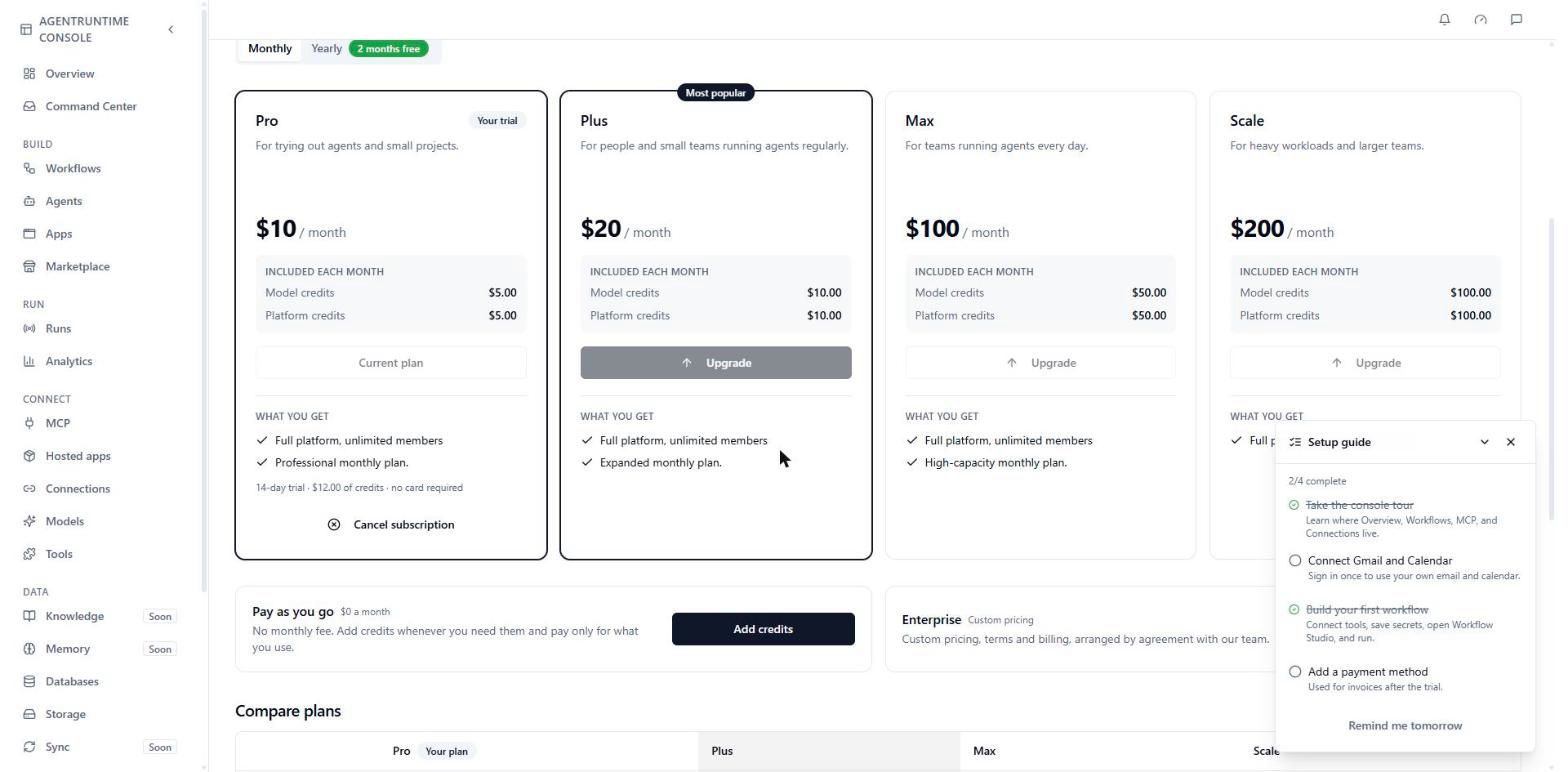
Paid plans show Add a card before subscribing (or Add a card before changing plans, if you already have a plan) until a card is on file. Plans with a free trial show the trial and the words "no card required". A plan with no trial says "Paid subscription only — no trial on this plan."
Subscribe
- Add a card
If there is no card on file, add one. See Payment methods.
- Pick a plan
Go to Billing → Plans and click the button on the plan card, for example Subscribe to Plus or Start trial on Pro.
- Confirm with your bank if asked
Your bank may ask you to confirm the payment. See Bank confirmation (3-D Secure).
You should see: the plan marked Current plan with the Active badge, and the credits that come with the plan in your balance.
Plan credits are added only after the payment is confirmed. Nothing is charged and no credits are added while your bank step is waiting.
A yearly plan is paid once a year. A year of plan credits is added at the start and ends when the year ends.
Upgrade
Click Upgrade on a plan that costs more than your current plan. The dialog is called Upgrade to and the plan name. It says:
The new plan starts right away. You pay the prorated difference now; if the payment does not go through, nothing changes.
Click Confirm upgrade. The charge is the difference for the rest of the billing period, not the full price. You also get the extra plan credits the new plan includes, in proportion to the time left in the period.
If the payment is declined, your plan stays as it was. If your bank needs a confirmation, you stay on your current plan until you confirm it.
Downgrade
Click Downgrade on a cheaper plan. The dialog says:
Your current plan stays active until the end of the billing period, then the new plan applies.
Click Confirm downgrade. You keep your current plan and its credits until then.
Cancel
On your current plan card, click Cancel subscription. The dialog says your subscription will end at the end of the current billing period. It also tells you:
- You keep access and the plan credits until the end of the period.
- Top-up credits are kept.
- You can change your mind before then with Keep my subscription.
Click Confirm cancel, or Don't cancel to leave things as they are.
While a cancellation is waiting, the Console shows a Subscription ending notice with the date you keep access until. Plan changes are not available until the cancellation is cleared or the plan has ended.
Keep my subscription
In the Subscription ending notice, click Keep my subscription. The plan carries on as normal and the Console says "Subscription kept". You can do this at any time before the end of the period.
After a plan or trial ends
When a plan ends, or a trial ends and you have not added a card:
- Unused trial and plan credits end. Top-up credits are kept.
- The workspace keeps running while it still has top-up credits.
- With no top-up credits left, starting a run is refused with: "This subscription is not active. Update billing or subscribe again to resume workflow runs."
- Your workflows, connections and data are kept.
To continue, add credits or subscribe again from Billing → Plans. You can subscribe again at any time.
Pay-as-you-go
You do not need a plan to use AgentRuntime. A workspace without a plan can run on the credits it has. Add credits whenever you need them. See Add credits.