

Google Workspace
Sign in with Google once and use Gmail, Drive, Sheets, Calendar, and other Google connectors in your workflows.
En esta página
This page is for people who want workflows to use Gmail, Google Sheets, Google Calendar, and other Google services. You sign in with Google once, and several connectors can share that one connection.
What you get
One Google connection can power many connectors. You add one MCP instance per connector, and each instance uses the same Google connection.
Services you can pick
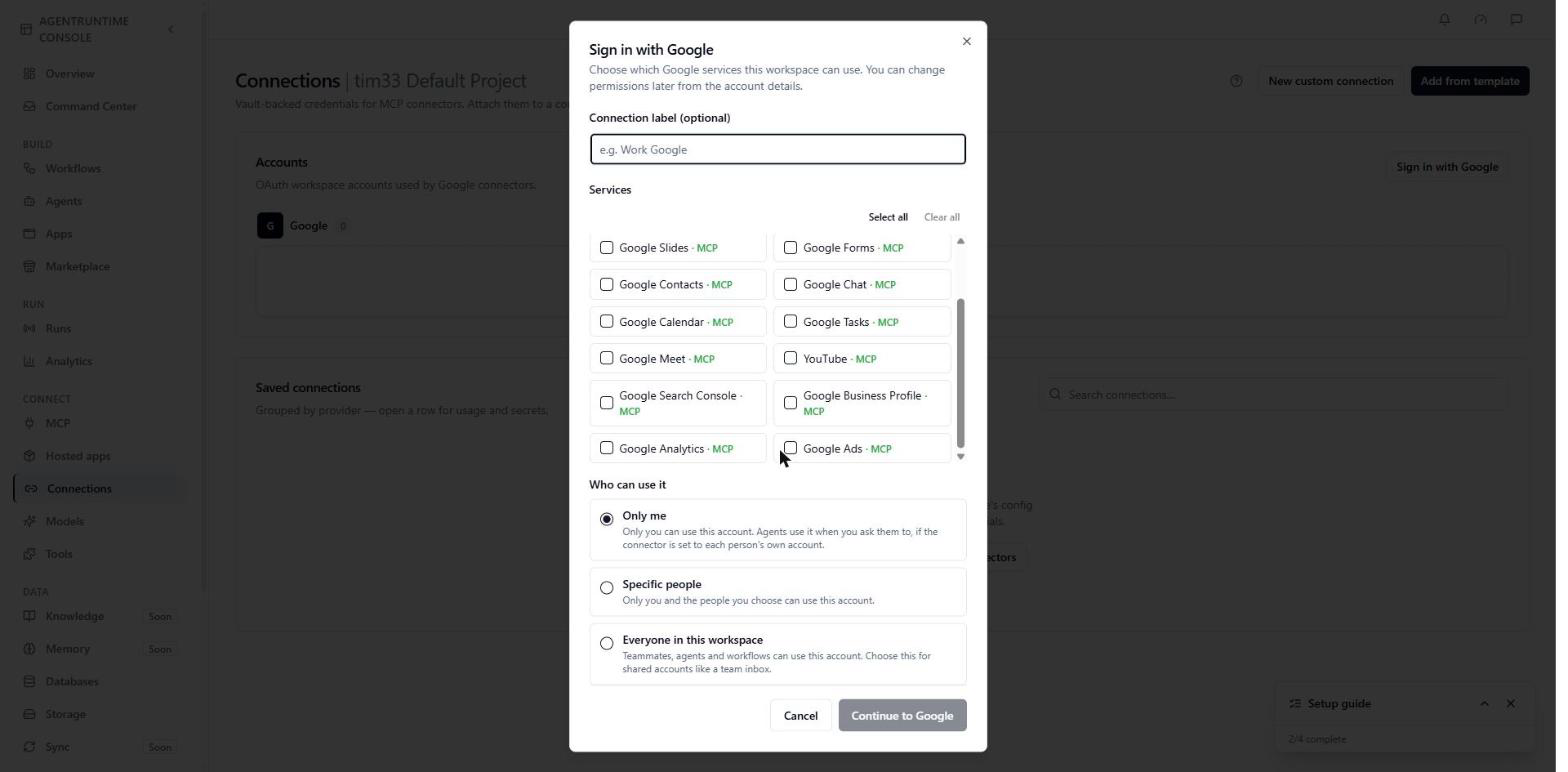
When you sign in, the services checklist offers these Google services. A green · MCP next to a name means its connector is ready.
| Service | Connector slug |
|---|---|
| Gmail | gmail |
| Google Drive | google-drive |
| Google Sheets | google-sheets |
| Google Docs | google-docs |
| Google Slides | google-slides |
| Google Forms | google-form |
| Google Contacts | google-contacts |
| Google Chat | google-chat |
| Google Calendar | google-calendar |
| Google Tasks | google-tasks |
| Google Meet | google-meet |
| YouTube | youtube |
| Google Search Console | google-search-console |
| Google Business Profile | google-business-profile |
| Google Analytics | google-analytics-4 |
| Google Ads | google-ads |
Connectors with their own guide are linked from the connector catalog.
Before you begin
- The project_contributor role or higher in your project.
- A Google account that can approve the permissions you request.
- A workspace selected in the Console header.
Set it up
- Sign in with Google
Open Connections and click Sign in with Google. Enter a Display name (for example
Work Google). - Pick the services
Tick the services you need. Select all and Clear all are available. You must pick at least one. The dialog does not say whether a service is read-only or can also send, edit or delete. Tick only what your workflow needs.
- Choose who can use it
Under Who can use it, pick Only me (only you; agents use it when you ask them to, if the connector is set to each person's own account), Specific people, or Everyone in this workspace (teammates, agents and workflows; choose this for a shared account such as a team inbox). You can change permissions later from the account's details. See Choose who can use a connection.
- Continue to Google
Click Continue to Google, choose your account, and approve the permissions. You return to the Console, and the account appears under Accounts.
- Add a connector instance
Open MCP, click Add connectors, pick a connector such as
google-sheets, and click Add to workspace. - Attach the Google connection
Open the instance. On Instance config, click New profile, choose your Google account in the credentials section, set Status to Active, click Save, then click Use this profile for workflows.
- Check it
Run MCP validation for the connector, or run a small workflow that calls one read-only tool.
If Sign in with Google is missing or Continue to Google is disabled, Google sign-in is not set up for your workspace. Contact support@agentruntime.io.
Gmail has its own guide with tool details.
Use your own Google app (optional)
By default, Google's consent screen shows AgentRuntime's app. To show your own app name instead, you can register your own Google Cloud OAuth client:
- In the Console, open Settings, then Integrations (under Developers).
- Find Google OAuth application. Copy the authorized redirect URI shown there into your OAuth client in Google Cloud Console.
- Turn on Use workspace OAuth app, enter a Display name, your OAuth client ID, and OAuth client secret, and save.
The client secret is stored in the Vault only.
Add services or fix a broken connection
- Add a service later: open the Google account on Connections and click Update permissions. Google asks you to approve the new permissions.
- Reconnect: if access stops working (for example, someone revoked it), open the account and click Reconnect and approve again. Start a new run for any run that failed in the meantime.
Example workflows
Read a Sheet and email a summary
google-sheetsstep: read a range.- A
luaorfor_eachstep: process the rows. gmailstep:gmail_send_emailwith the summary.
Create a calendar event after approval
humanstep: someone approves the meeting details.google-calendarstep: create the event.
See Workflow patterns for approve-then-send and webhook triggers.
Common problems
| Problem | What to do |
|---|---|
A 403 mentions permissions or scopes | Open the account, click Update permissions, tick the service, and approve. |
A 404 not found | Check the file, calendar, or spreadsheet ID in the tool arguments. |
| Google access stopped working | Click Reconnect on the account. |
| Works in testing but not in production | Use a separate instance and profile that point to the production Google account, and select the right instance on each step. |
See Troubleshooting for more.