

External triggers
Start workflows on a schedule, from a webhook, from a platform event, or from the API, and what each trigger sends to the run.
En esta página
A trigger starts a workflow without anyone clicking Run in Studio. This page covers the four kinds of trigger and what start values each one sends.
Who this is for: people who want a workflow to run on its own: every morning, when a form is submitted, when a customer connects an account, or when your own code calls it.
What you will do: pick a trigger, set it up in Workflow setup, and check that it started a run.
Pick a trigger
| You want | Use | Set up in |
|---|---|---|
| A run every hour, day, or week | Cron schedule | Setup → Cron |
| A run when another system sends you data | Inbound webhook | Setup → Inbound |
| A run when something happens in AgentRuntime (a customer connects or disconnects an account) | Platform event | Setup → Events |
| A run from your own code | API | Setup → API |
| A run for each message in a chat | Conversation sessions | Setup → Sessions |
Every trigger sends its own start values: the starting input (trigger_payload, read as {{input.*}}), optional per-step values (trigger_steps), and optionally steps to leave out (excluded_step_ids). The workflow's saved Save defaults are not added at run time. See Run setup.
Each trigger also chooses which version to run: Draft, Last published, or a fixed version. See Draft and published versions.
Cron schedules
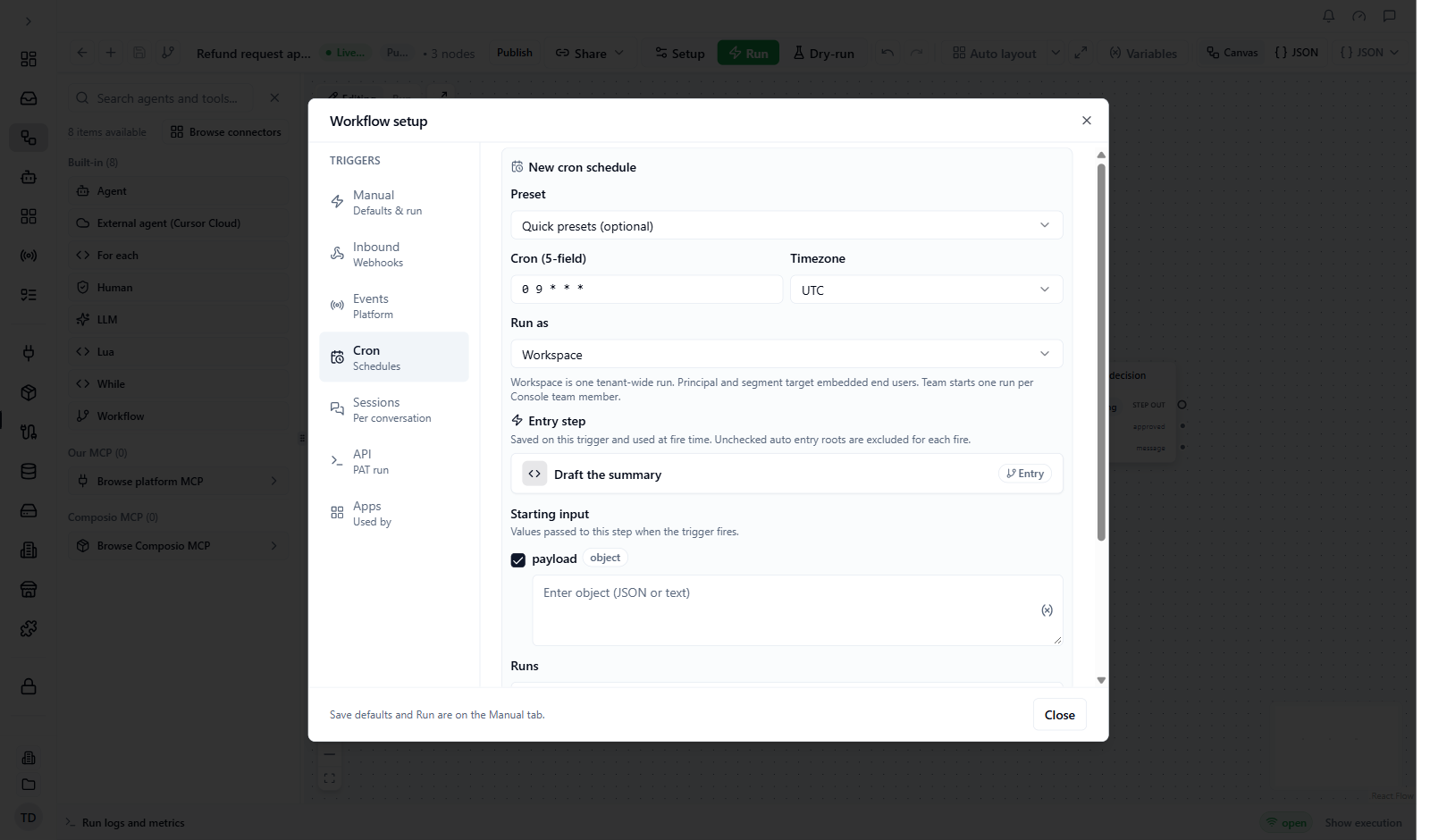
- Open the Cron tab
In Workflow Studio, click Setup, then Cron.
- Set the time
Pick a Preset (Every hour, Daily 09:00, Weekdays 09:00, Weekly Mon 09:00) or type a Cron (5-field) expression such as
0 9 * * *. Choose a Timezone. - Set the start values
Under Entry step and Starting input, choose the start step and type the starting input, the same as on the Manual tab. Leave Run as on Workspace unless you are running for Embedded Connect end users.
- Choose the version and the key
Under Runs, choose Draft or Last published. Under Automation API key, pick the key the run starts under, or create one with the Create API key button (the + beside the list).
- Add the schedule
Click Add schedule.
You should see the schedule under Active schedules with the cron expression, the timezone, and the time of the next run.
Cron example, every weekday at 09:00 UTC:
{
  "cron": "0 9 * * 1-5",
  "timezone": "UTC",
  "trigger_steps": {
    "<start-step-id>": { "limit": 30 }
  },
  "excluded_step_ids": []
}
For workflows that serve many Embedded Connect customers, choose a Principal segment (or a Console team) so that each tick starts one run per member. See Triggers and run identity.
Inbound webhooks
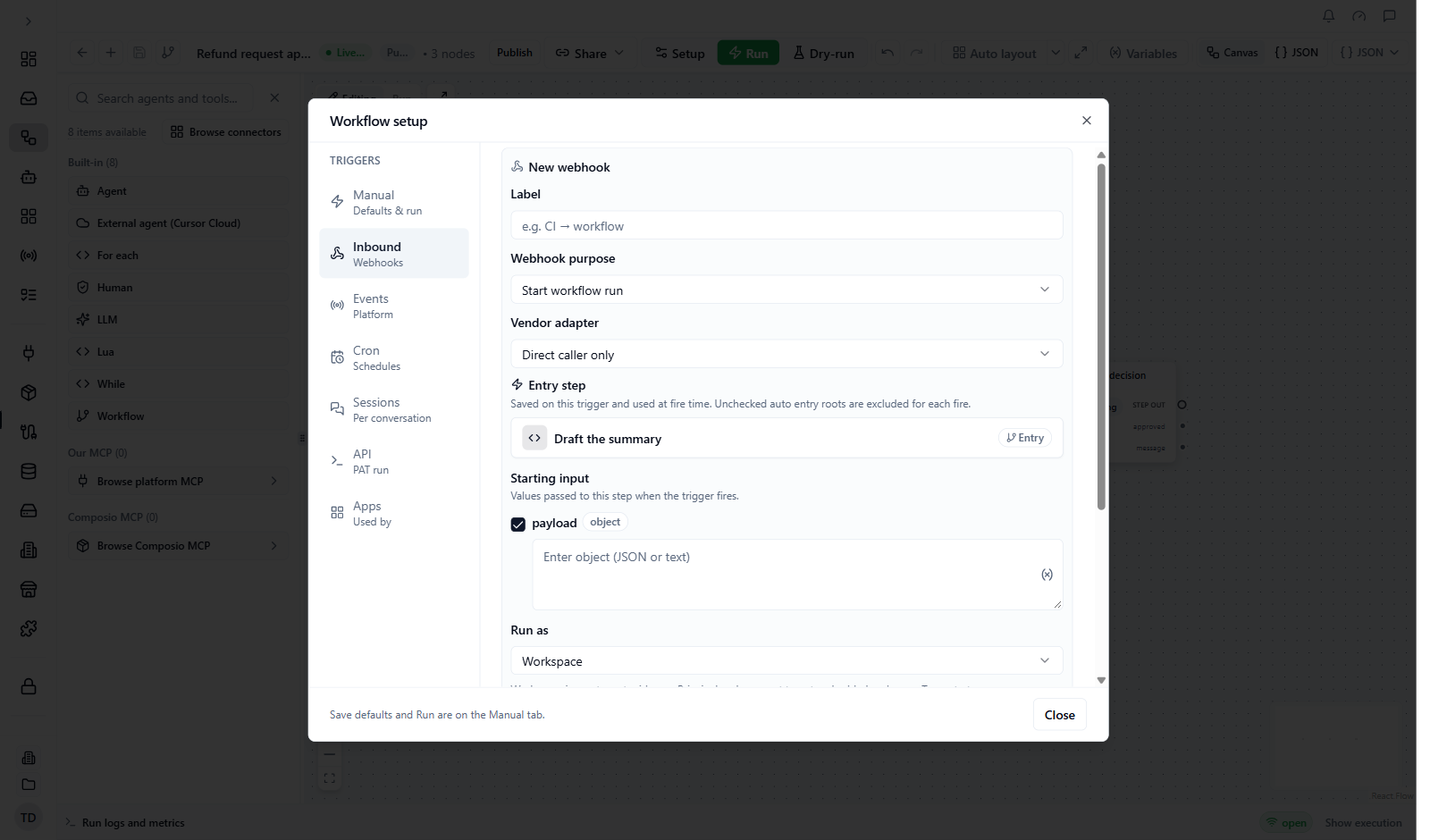
Webhook purpose is Start workflow run or Append to agent inbox (mid-turn). Vendor adapter is Direct caller only for your own code, or a connector webhook such as github, telegram or whatsapp.
An outside system sends a signed HTTP request to your webhook URL, and AgentRuntime starts a run with the request body as the starting input.
- Open Setup → Inbound, fill in the New webhook form (Label, Webhook purpose, Vendor adapter, the entry step and starting input, Runs, Automation API key), and click Create subscription. The Console shows the Ingress URL (start run) and the Signing secret.
- Configure the sender to
POSTJSON to that URL with the signature and an idempotency key. - The JSON body becomes
{{input.*}}.
If you save fixed start values on the webhook, they are merged with the request body, and the request wins when both set the same value. Senders may retry, so make the workflow safe to run twice for the same event. Full setup, signing, and vendor options are in Inbound webhooks.
Platform events
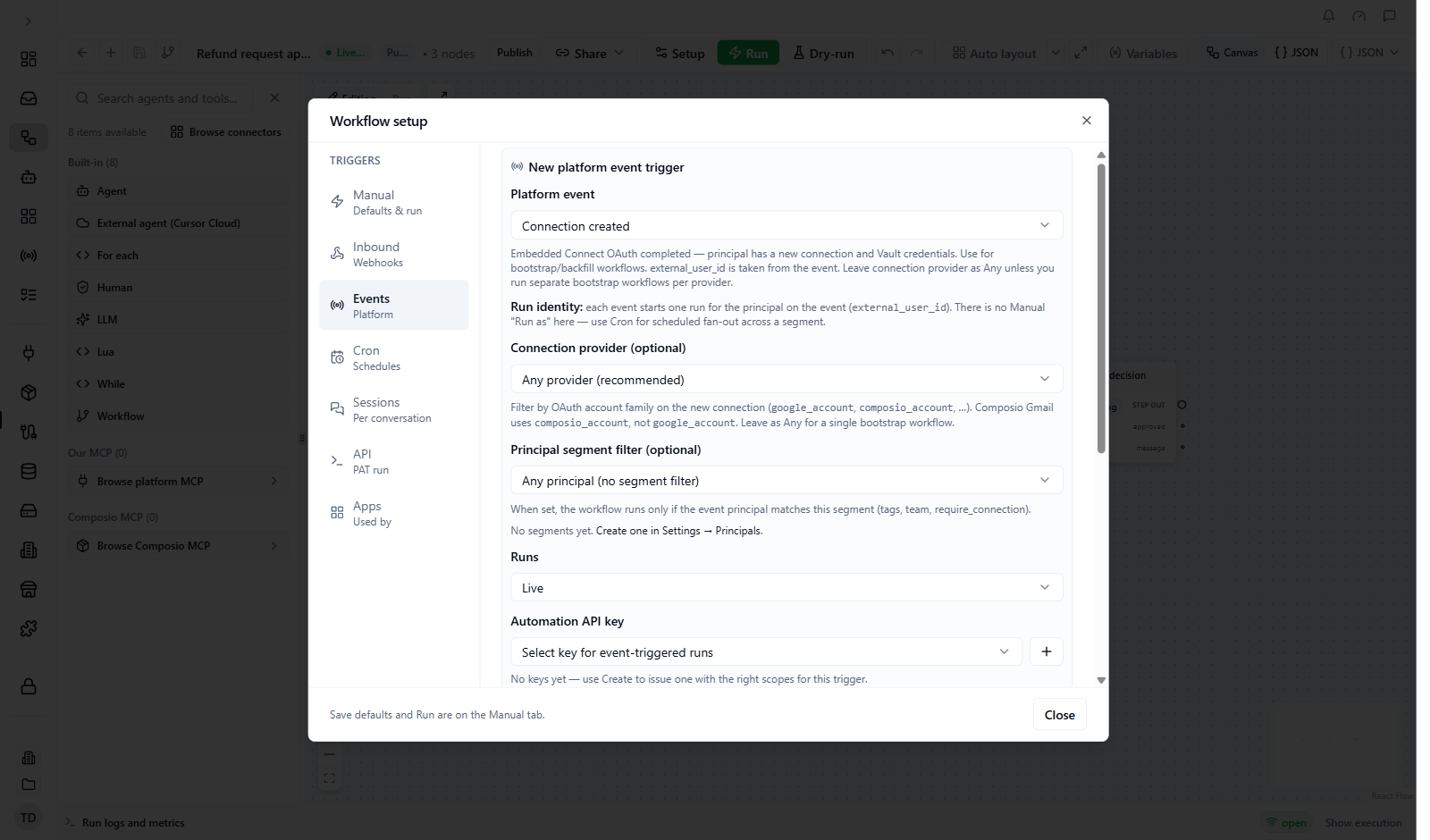
A platform event starts a workflow when something happens to a customer in your workspace. Set it up under Setup → Events:
| Event | When it fires | Credentials on the run? |
|---|---|---|
Principal created (principal.created) | A new end user appears, before they have connected anything | No |
Connection created (connection.created) | A customer finished connecting an account | Yes |
Connection revoked (connection.revoked) | A customer's connection was removed | Yes |
Principal suspended (principal.suspended) | An end user was suspended | Yes |
Principal deleted (principal.deleted) | An end user was deleted | Yes |
Optional filters: Connection provider (only for the two connection events: Any provider (recommended), google_account, composio_account, or whatsapp) and Principal segment filter. Each event starts one run for the principal it is about, so there is no Run as choice here. The run receives the event's details, such as the connection and provider, as start values.
Start from the API
Send complete start values in the request:
POST /v1/workflows/{id}/command
{
  "command": "start",
  "params": {
    "trigger_type": "api",
    "trigger_payload": { "topic": "api-only" },
    "trigger_steps": { "<start-step-id>": { "limit": 5 } },
    "excluded_step_ids": []
  }
}
The API tab in Workflow setup gives you a ready-made request for your language.
Common problems
| Problem | What to try |
|---|---|
| A schedule did not run | Check Active schedules for the next run time and timezone. Check that the Automation API key is still active. |
| The run uses old behaviour | The trigger runs Last published or a fixed version. Change Runs to Draft, or publish and switch it. |
| A webhook request was rejected | Check the signature secret, and that the sender includes the idempotency key. See Inbound webhooks. |
| An input is empty in the run | The trigger did not send it. Look at the run's Events and Context tabs to see the input it received. |