

Runs and observability
Start a run, follow it step by step, control it, and understand why a step failed or was skipped.
En esta página
A run is one execution of a workflow. This page explains how runs start, what the run panel shows, how to control a run, and how to read step statuses.
Who this is for: anyone who runs or supports workflows.
Start a run
| From | How |
|---|---|
| Workflow Studio | Click Run. It runs your draft with the input from Workflow setup. |
| API | POST /v1/workflows/{id}/command with "command": "start". See the API reference. |
| Schedule | A cron schedule you add in Workflow setup → Cron |
| Inbound webhook | An outside system sends a signed request. See Inbound webhooks. |
| Platform event | Workflow setup → Events, for Embedded Connect events |
| Conversation | A message from a contact joins or starts a conversation session |
| Autopilot | Ask Autopilot in Chat to run a workflow by name |
Each trigger chooses which version it runs: Draft, Last published, or a fixed version. See Draft and published versions. A run keeps the version it started with, even if you edit the workflow later.
Watch a run
Open the workflow in Workflow Studio and expand Run logs and metrics at the bottom. Pick a run from the Runs list on the left (filter it with All, Running or Failed). The run panel has these tabs:
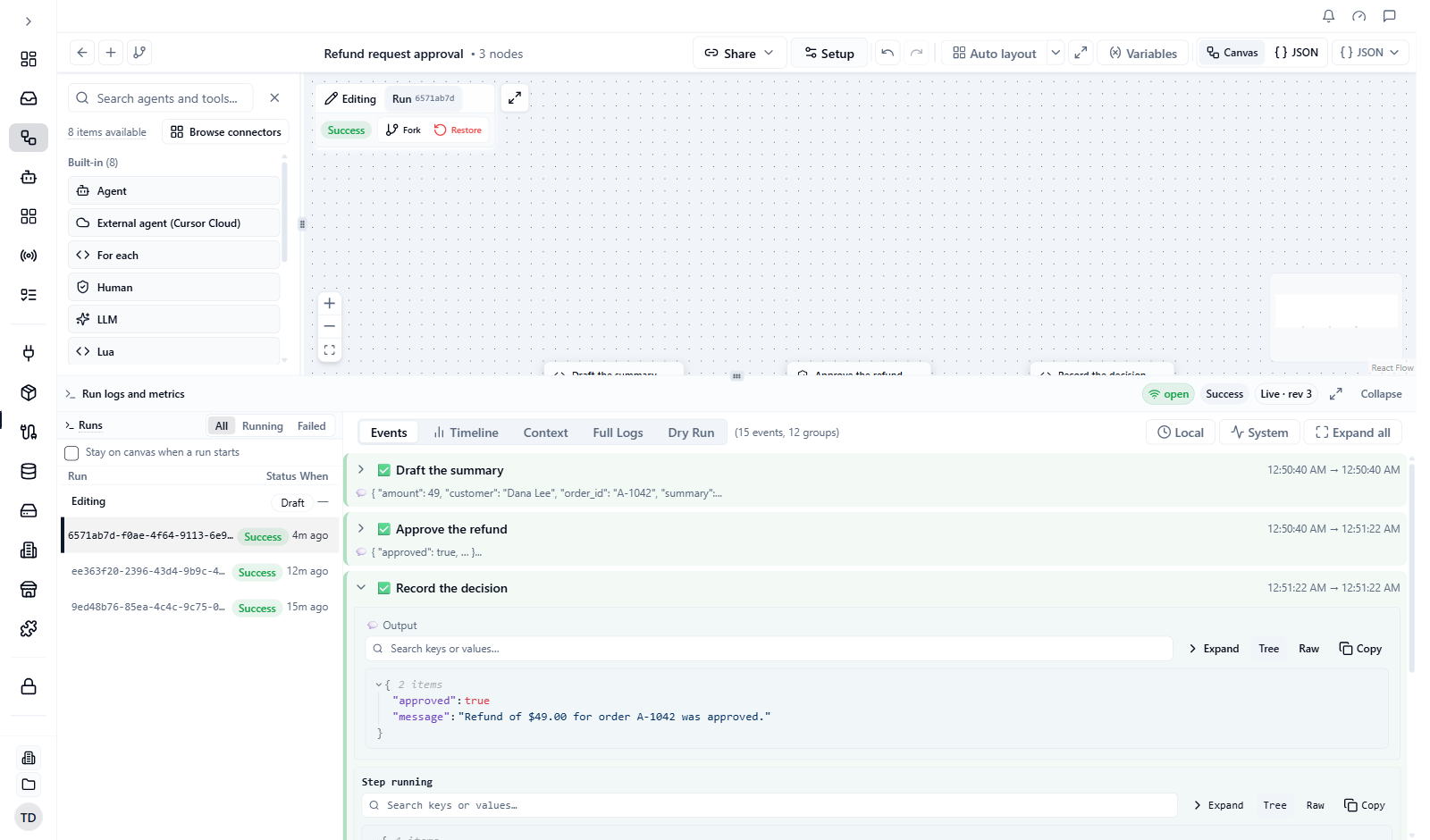
- Events: a log of every step: started, tool result, model output, failure, pause. It updates live while the run is active.
- Timeline: a bar for every step so you can see where time went. See Execution timeline.
- Context: the run's details and a graph of the steps in the order they ran.
- Full Logs: the complete log lines for the run.
- Dry Run: the latest dry-run result for the current canvas (not a replay of the selected run).
For a step that ran an agent or a model, click Watch LLM to replay what it generated.
Runs that wait for a person also appear in Command Center, which lists runs across the whole workspace.
Control a run
In Studio, use the buttons next to Run while a run is selected. In Command Center, use the buttons on the run's row. The API takes the same commands.
| Control | Effect |
|---|---|
| Pause | No new steps start. Steps already running can finish. |
| Resume | Continue a paused run. |
| Stop | End the run. Options: Force stop (the main button), Stop immediately, Stop gracefully. |
- Stop immediately and Force stop cancel the calls in flight: tool calls, model calls, Lua scripts, Cursor Cloud waits and loops. Each cancelled step shows Cancelled. An agent step stops at its next tool call.
- Stop gracefully lets running steps finish and never starts the rest. Their results are not recorded. The run ends as Stopped.
- A stop does not undo anything a call already did (an email sent stays sent), and does not stop child workflows.
- A stopped run cannot be resumed. Start a new run instead.
In the API, stop takes params.mode: immediate (the default), graceful, or force. See How runs execute.
When a step fails
When a step fails, the run fails at once and cannot be resumed. The canvas and the Events tab show what happened to every step, so you can see which step caused it and which were only collateral:
| Status shown | When |
|---|---|
| Failed | The step that caused the run to fail. Read its error in Events. |
| Skipped · Blocked | The step never started because a step it needs failed |
| Success | The step finished before the failure. Its output is still in the run's Context. |
A step that was already running when another step failed is not interrupted. It finishes in the background, but its result is not recorded on the run, and anything it did outside the run (an email it sent, a row it wrote) still happened.
For example: branch A fails because a credential is missing. Branch B was in the middle of a tool call, so that call still completes, but its result is dropped. The step that joins A and B shows Skipped · Blocked.
Other skip reasons you may see in Events: Disabled (the step is switched off), Excluded this run (you left it out in setup), Approval rejected, Out of scope (see Autonomous episodes).
A step Cancelled by a failure is not the same as a run you stopped yourself. A stopped run shows Stopped by operator.
Fix the cause (model, credential, tool arguments), then start a new run. See Run recovery. The events behind these statuses are listed in the API reference.
Replay a run
There is no separate replay command. Open the run in Studio and read Events. Through the API, page through GET /v1/workflows/{id}/runs/{runID}/events.
Analytics
The Analytics page shows workspace-wide numbers: live and recent runs, success rate, steps run, credits used, and usage over time. See Analytics.
Credits
Model tokens, tool calls, and workflow steps use credits according to your plan. Usage appears on the Analytics page and in billing. See Billing and credits.
Common problems
| Problem | What to try |
|---|---|
| The run shows Paused | It may be waiting for a person. Open Command Center and answer the task. |
| The run is Running but nothing changes | Open Events and read the last step. A slow tool or model is the usual cause. See Troubleshooting. |
| Insufficient credits | Top up in billing, then start a new run. |