Dark theme and preferences
Switch the Console between Light, Dark, and System, and see which pages ignore your choice.
En esta página
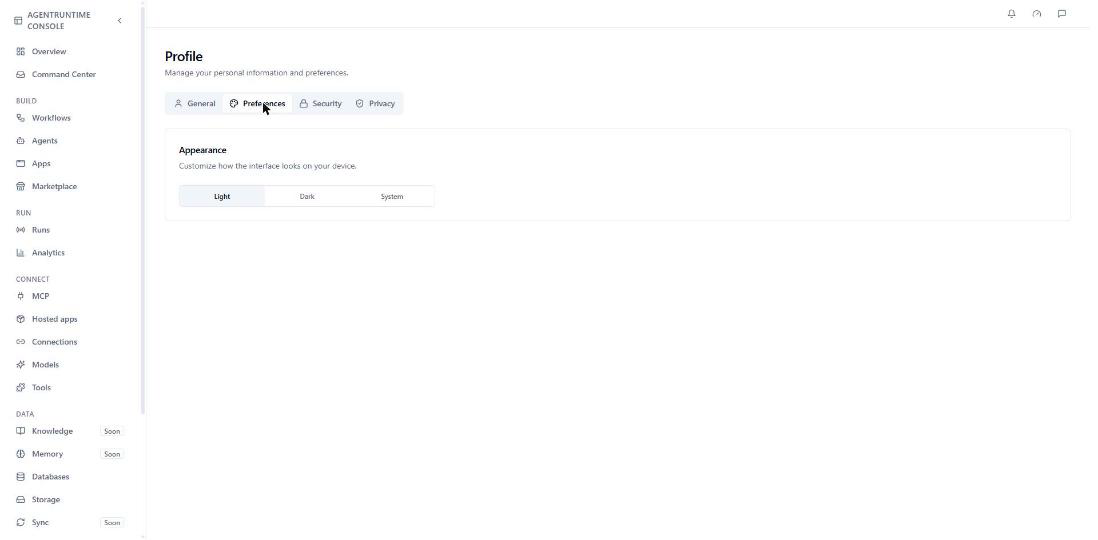
The only setting under Preferences is Appearance. It controls whether the Console is light or dark on your device.
Who this is for: anyone who prefers a dark interface or wants the Console to follow the operating system.
Change the theme
- Open Preferences
Open your profile and click Preferences. Appearance reads "Customize how the interface looks on your device."
- Pick a theme
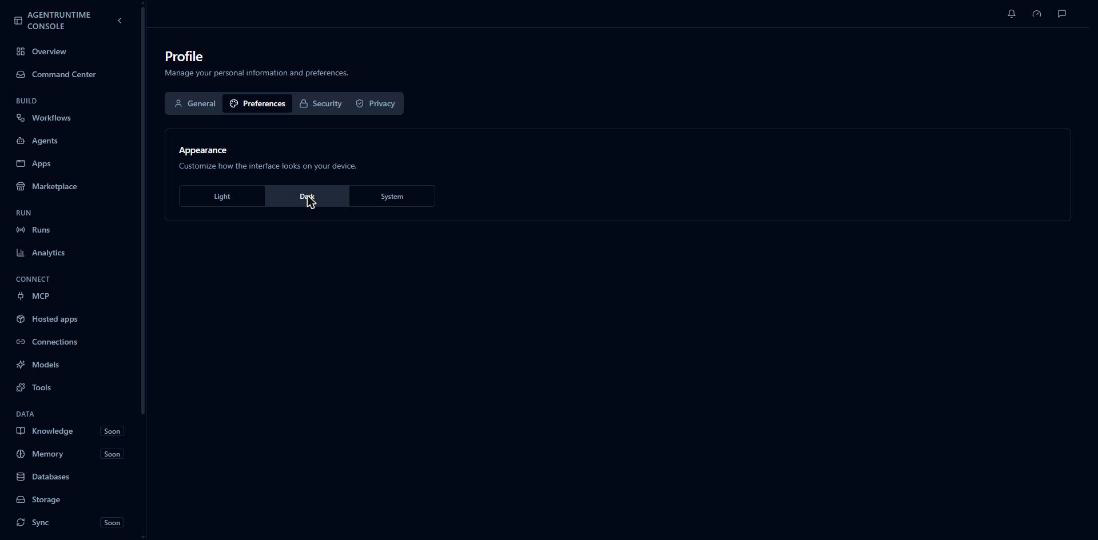
Click Light, Dark, or System. System follows your device setting.
You should see: the Console change immediately. The choice stays when you move between pages.
| Option | Result |
|---|---|
| Light | Light interface. The default. |
| Dark | Dark interface on Overview, Workflow Studio, Billing, Connections, and the other Console pages. |
| System | Follows the light or dark setting of your device. |
The setting belongs to you, not to the workspace. There is no theme switch in the top bar, so you always change it from your profile.
Two screens ignore your choice. The page you reach from a workspace invite link is always dark, and the confirmation pages you see when you verify your email are always dark.
What else is in Preferences
Nothing else. There are no language, time zone, or email notification settings under Preferences today. The Runs page has its own Times toggle for local or UTC times.
In dark mode, small grey text can be harder to read. This includes the sidebar group labels (Build, Run, Connect, Data) and the lines under the credits panel. If it is a problem, switch back to Light.