

Your profile and account
Change your username and password, export your data, and delete your account. Where each setting lives and what blocks account deletion.
En esta página
Your profile is personal to you and applies to every workspace you belong to. It has four tabs: General, Preferences, Security, and Privacy.
Who this is for: every user. Workspace settings, such as the workspace name and members, are on a different page: see Settings.
Open your profile
Open your profile in the Console (the page is at /profile). The tabs are General, Preferences, Security, and Privacy.
| Tab | What you do there |
|---|---|
| General | See your name, email, and user ID. Change your username with Save username. Restart the Product tours. |
| Preferences | Choose Light, Dark, or System under Appearance. See Dark theme and preferences. |
| Security | Change your password. Turn two-factor authentication on or off. |
| Privacy | Download your data. Delete your account. |
First name, last name, and email are greyed out and cannot be edited on this page. The Console does not say why. Your username accepts letters and digits only, 3 to 64 characters, and Save username stays disabled until you type a new one.
Change your password
- Open Security
Go to your profile and click Security. Under Password you see: "Change your sign-in password for email and password login."
- Fill in the three fields
Enter Current password, New password (at least 8 characters), and Confirm new password. If you forgot the current one, click Forgot your current password?.
- Click Change password
You should see: the password change confirmed. Use the new password the next time you sign in.
The password form is for email and password sign-in. If you sign in with Google, this page may not apply to you. The Console does not describe what a Google-only account sees here.
Two-factor authentication
Two-factor authentication asks for a 6-digit code from an authenticator app (for example Google Authenticator or Microsoft Authenticator) when you sign in with your email and password. It is off until you turn it on, and it applies to your own account only.
The Two-factor authentication card is on the Security tab, below the password form. It shows one of these:
| What the card shows | What it means |
|---|---|
| Off and a Set up button | Two-factor is available and not turned on. |
| On, with your authenticator listed (and the date you added it) and a Remove button | Signing in with your email and password asks for a code. |
| You sign in with Google | Your account has no password. Google's 2-Step Verification protects it, and you manage that in your Google Account security settings. |
| Not available yet | Two-factor cannot be turned on right now. Try again later. |
- Click Set up
On Security, click Set up on the Two-factor authentication card. You go to AgentRuntime's secure sign-in page, which asks you to sign in again to confirm it is you.
- Scan the QR code
Open your authenticator app and scan the QR code on the page. Type the 6-digit code the app shows. You can give the device a name; if you leave it empty it shows as Authenticator app. Click Submit.
- Check the card
You should see: back on your profile, a message that two-factor authentication is on, and the card showing On. Setting it up also signs you out of your other sessions.
Signing in with two-factor on
Type your email on the sign-in page. The Console tells you that the account uses two-factor authentication and offers Continue to the secure sign-in page. There you enter your password and then the 6-digit code from your app.
The code protects signing in with your email and password. Signing in with Google uses Google's own security and does not ask for the code.
Turn it off
Click Remove next to your authenticator on the Security tab and confirm on the secure sign-in page. When it is off, signing in asks for your password only.
If you lose access to your authenticator app, you cannot get back in by yourself today. Contact AgentRuntime support to have two-factor reset on your account. Keep your authenticator app backed up on your devices.
The Security tab does not list your active sessions and has no Sign out everywhere control.
Export your data
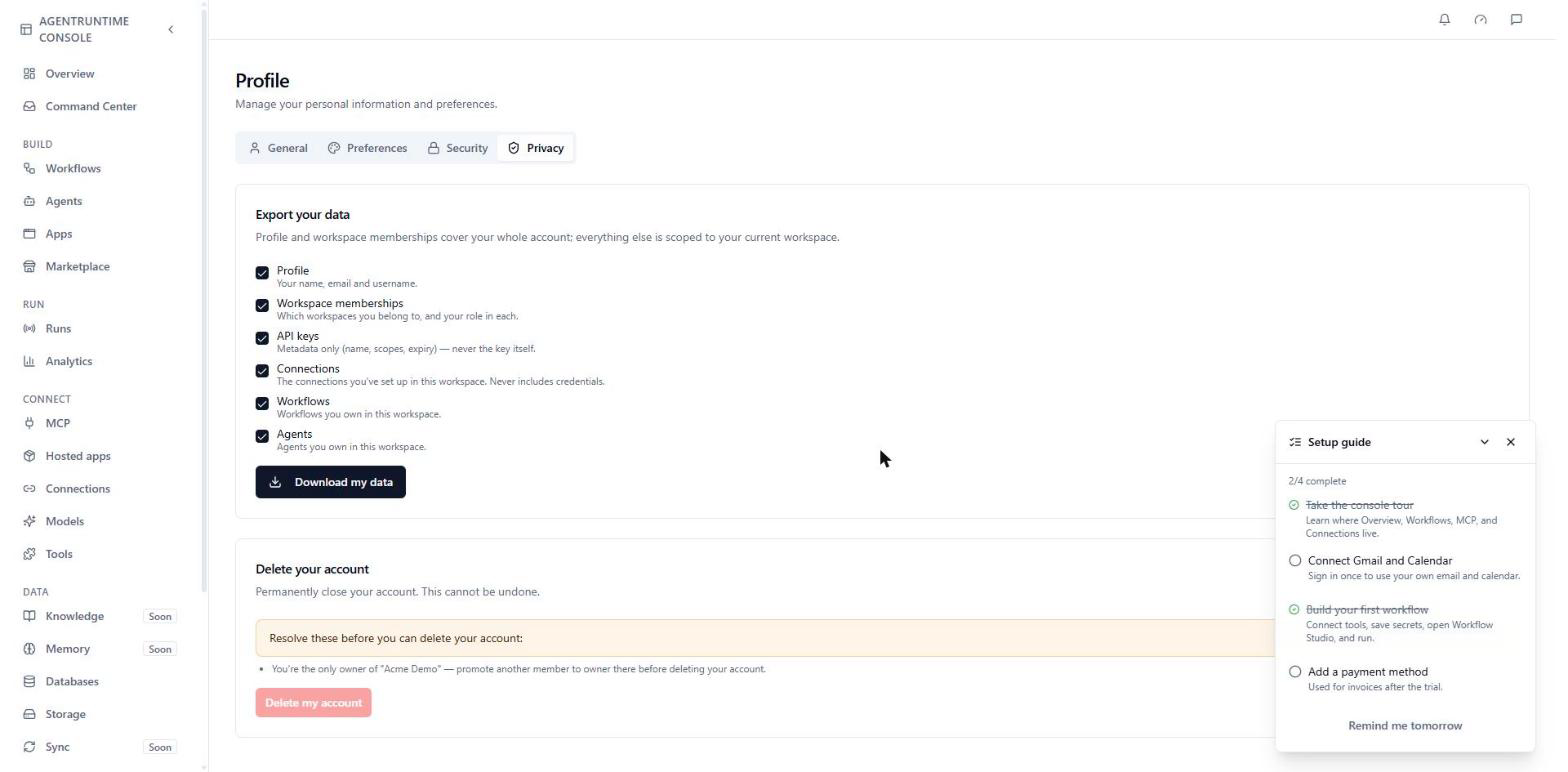
Open Privacy. Export your data explains what you get: your profile and workspace memberships cover your whole account, and everything else is limited to your current workspace.
| Included | Notes |
|---|---|
| Profile | Your name, email, and username. |
| Workspace memberships | All workspaces you belong to. |
| API keys | Metadata only (name, scopes, expiry). Never the key itself. |
| Connections | Never includes credentials. |
| Workflows | The workflows you own. |
| Agents | The agents you own. |
Click Download my data.
The export does not include runs, approvals and their decisions, secret metadata, billing history, or the audit log. If you belong to several workspaces, switch to each one and export again, because everything except your profile and memberships is scoped to the current workspace.
Delete your account
Delete your account says "Permanently close your account. This cannot be undone." Before you can delete it, the page lists what you must resolve first.
The most common blocker: you are the only owner of a workspace. The card then reads, for example, "You're the only owner of 'Acme Demo' — promote another member to owner there before deleting your account." To fix it:
- Promote another owner
Open Settings → Team & Members in that workspace and change another member's workspace role to Owner. See Invite a teammate.
- Come back to Privacy
You should see: the blocker gone from the list.
- Delete
Click Delete my account only when you are sure. Account deletion cannot be undone, and it is refused when you have paid-for credits.
While blockers are listed, the Delete my account button is faded and cannot be used. Read the list first, resolve each item, and export your data before you delete anything.
Deleting a workspace is a separate action under Settings → General. Self-service workspace deletion is not available yet: the page directs you to support. See Settings.
Next steps
- Dark theme and preferences
- Settings: workspace name, members, API keys.
- Roles and permissions
- Security and compliance