

MCP instances
Add a connector to your workspace, give it credentials with a config profile, and use it in workflows.
En esta página
An MCP instance is your workspace's copy of a connector. A connector is a set of tools for one service, such as Gmail or Postgres. You add an instance, tell it which connection to use, and then workflow steps can call its tools.
This page is for people setting up connectors in the Console. It explains where to click and what each setting means.
Before you begin
- The project_contributor role or higher. Without MCP write permission, Add connectors is disabled.
- A connection for the service, if the connector needs credentials.
Key terms
| Term | Meaning |
|---|---|
| Connector (MCP server) | A tool set published in the catalog, or a server you registered yourself. |
| Instance | Your workspace's use of a connector, with its own credentials. |
| Config profile | A saved setup on an instance that says where its credentials come from. You can keep several profiles; one is active for workflows. |
| Connection | Saved credentials, managed on the Connections page. |
Add an instance
- Open MCP connectors
Click MCP in the sidebar. The page is titled MCP connectors. Use the Search box and the Status filter (All status, Active or Disabled) to find instances you already have. A new workspace shows No MCP instances yet.
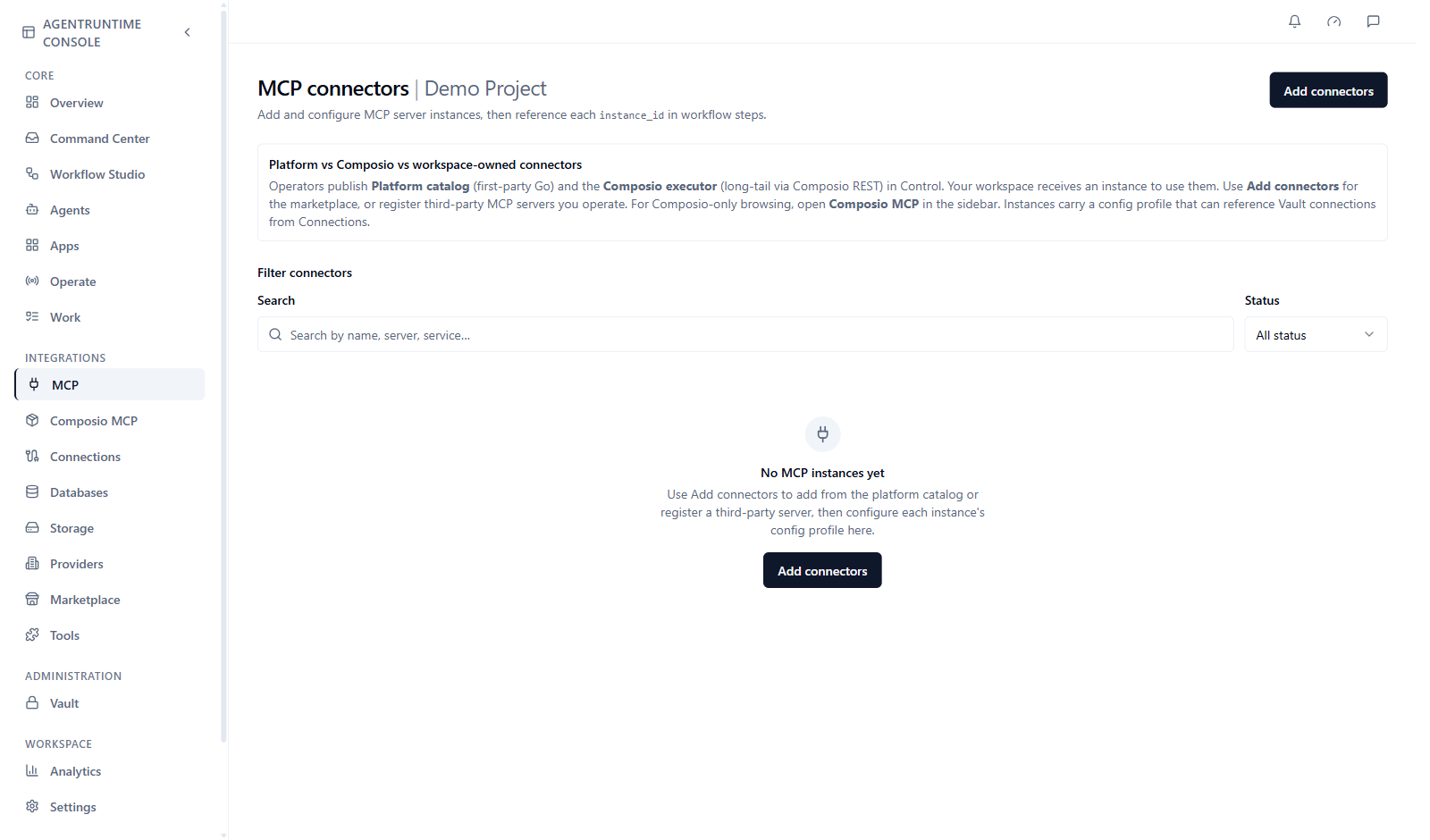
The MCP connectors page in a new workspace - Open the catalog
Click Add connectors. The App catalog opens. It has two tabs, Add connector and My connections. It opens on All Apps, sorted A to Z, so the first rows are obscure services, not the popular ones. Each row shows the connector's slug (for example
composio-active_campaign) and its tool count. To find a popular app, search for it, or click Featured or one of the topic chips (CRM, Cloud Storage, Communication, Development, Finance, Other, Productivity, Support). The same service can appear twice, for example Activecampaign (9 tools) and ActiveCampaign (Composio) (298 tools). They are separate connectors. Use Search… or the categories on the left (All Apps, In workspace, Ours, Composio, Featured, and topics such as CRM and Communication) to find a connector. Ours appears when your workspace has platform connectors. The Composio category holds the hosted apps (see Hosted apps). Featured lists connectors you have not added yet. Add connector at the top of the list registers a server you run yourself.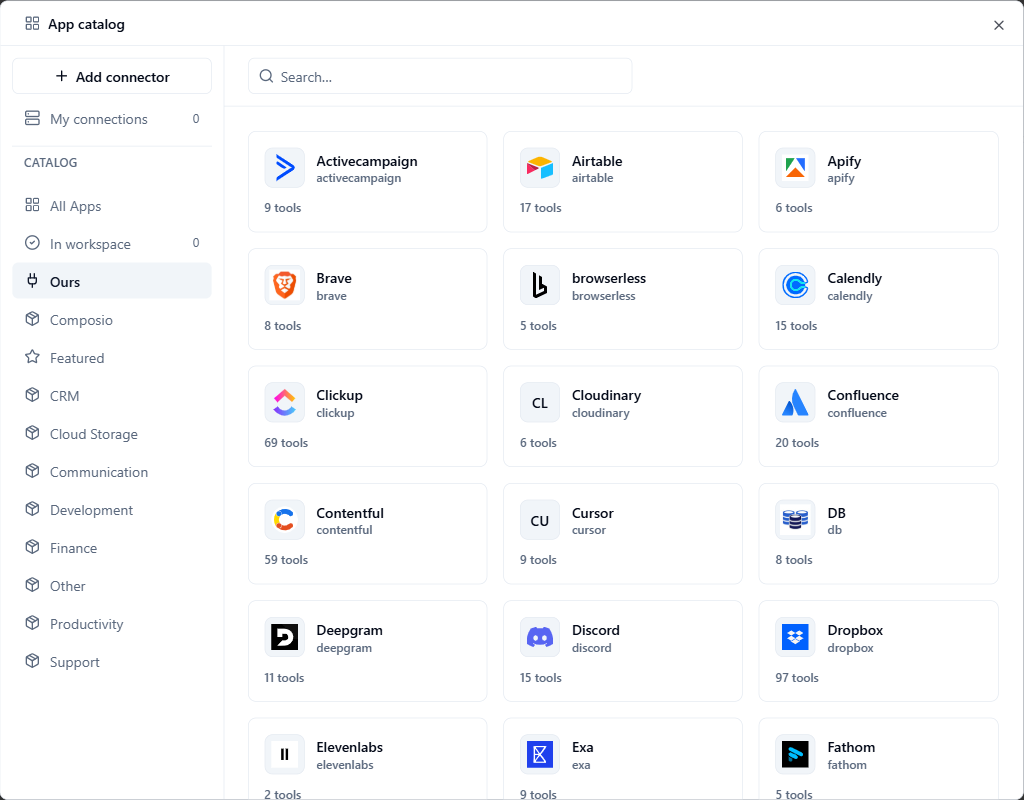
The App catalog, with the Ours category selected - Add it to your workspace
Click the connector to open its page, which lists its tools, then click Add to workspace. You should see a "Connector instance added" message and the instance on the MCP connectors page.
Hosted apps
Hosted apps in the sidebar is a second view of this page, for managed third-party apps. You manage the instances and the account connections, not the tool catalog, which is managed for you. The page says: "Hosted app integrations published for your workspace. Add an instance, connect your account, then use tools in Workflow Studio."
- In a new workspace this page lists one row, Storage (First Party, Connected, with its tool count). It is the same built-in storage connector as Storage in the sidebar. It is already connected, and nothing tells you it was added for you.
- Click Add hosted app. The App catalog opens on the Composio category, which is where hosted apps are listed.
- A workspace with none shows No hosted app instances yet.
- Connect the account on the Connections page. See Connections.
- In Workflow Studio, the step palette lists these tools under Hosted apps. Tools from the platform catalog are under Platform connectors. On the MCP page, the same two groups are the sections Platform catalog and Hosted apps.
Give the instance credentials
- Open Instance config
Open your instance. The Instance config page says: "Pick a profile, connect credentials, then save. Workflows use the profile you mark active."
- Create or open a profile
Under Profiles for this connector, click New profile, or select an existing one.
- Choose the credentials
Under Set up profile, enter a Display name. Then pick a saved connection in the credentials section, or enter values directly. Use the Per-key & mixed tab when different fields should come from different places. For Google and WhatsApp you can sign in from here if you have no connection yet.
- Make it active
Set Status to Active — can be used in workflows and click Save. Then click Use this profile for workflows. The profile now shows an active badge.
A Draft profile is saved but not used by workflows. You cannot delete the active profile while other profiles exist; make another profile active first.
Check an instance
Open Server detail from the instance page, then go to the connector's MCP validation page (/mcp/{server_id}/validate) and click Run checks. Each check shows its status. You can also test with a small workflow that calls one read-only tool.
Use an instance in a workflow
In Workflow Studio, add an MCP step. In workflow JSON its type is mcp. Select:
- the instance
- a tool from that instance
- the tool arguments: fixed values, or template variables such as
{{input.email}}for the run's input
At run time, AgentRuntime calls the tool with credentials from the instance's active profile. See Workflow Studio and step types.
Import a workflow that uses connectors
When you click Import in Workflow Studio and load a workflow file, the Review import step shows a Connectors section. For each connector the workflow uses:
- If you already have an instance, choose it from Choose instance.
- If you have none, click Add connector to add one.
- If the connector is not in your workspace's catalog, you see "Server not registered in this workspace" with an Add MCP server link.
Set up credentials on any new instance before you run the workflow.
Custom MCP servers
You can also register an MCP server you run yourself. See Custom MCP servers.
Platform MCP
Platform MCP is different. It lets IDEs and AI assistants control your AgentRuntime account (list workflows, start runs). It does not add tools to your workflows. See Platform MCP.
Common problems
| Problem | What to do |
|---|---|
| Add connectors is disabled | You need MCP write permission in the project. |
| The tool is missing in Workflow Studio | Check that the instance has an active profile, then reload the workflow. |
| Runs fail with an authorization error | Open the connection and click Test, or rotate the key. See Connections. |
| An N health issues button appears on the MCP page | Open the connector it lists to review changes to its tools. |