

Runs
Find runs across your workspace, stop paused runs, and manage cron schedules and inbound webhooks from one page.
En esta página
The Runs page is the Console page for the day-to-day running of your workflows. It has three tabs: Runs, Schedules and Webhooks. Above the tabs, a strip of three chips shows the health of your workspace at a glance.
Open it from Runs in the Run group of the Console sidebar (at https://console.agentruntime.io/operate).
Who this is for: people who keep workflows running in production. The Schedules and Webhooks tabs need the project_contributor role (or higher). With a lower role, those tabs show only the note "Contributors can manage schedules." or "Contributors can manage webhooks."
What you will do on this page: find a run, deal with runs that stay paused, add and check schedules, and add an inbound webhook.
Runs, Command Center or Studio?
Three places show runs. Pick the one that fits your question.
| Place | Use it to | Scope |
|---|---|---|
| Runs page | Find any run with filters (status, workflow, agent, source, dates, run ID). Stop old paused runs. Manage schedules and webhooks. | The whole workspace, or one project |
| Command Center | Answer approvals and replies, follow up missed tasks, and pause or stop runs that are in progress | The whole workspace |
| Workflow Studio run panel | Read one run step by step in Events, Timeline, Context and Full Logs | One workflow |
A run row on the Runs page links to the other two: Approve opens the task in Command Center, and the workflow name and Debug open the run in Studio.
What you see at the top
The page title area shows a Times button. It reads Times: Local or Times: UTC. Click it to switch how the Runs tab shows times. Your choice is remembered in this browser.
Under it, a hint tells you which projects you are looking at:
- When a project is selected, it says "Showing runs and automation for project" and the project name.
- When no project is selected, it says "Viewing all projects in this workspace" and offers Filter to your sidebar project.
The Runs page opens on the project you picked in the sidebar. To see the whole workspace, choose All projects in the Project filter. The page remembers that choice until you close the browser tab.
The health strip
Three chips sit above the tabs. Click a chip to jump to the matching list.
| Chip | What it counts | Where it takes you |
|---|---|---|
| Unfinished runs | Runs that are running, pending, queued, starting, draining or paused | Runs tab, with the Status filter on Unfinished |
| Failed schedule fires (24h) | Schedule fires that failed to start a run in the last 24 hours. The chip turns to a warning style when the number is above 0. | Schedules tab, with the failed fires list open |
| Inbound webhooks | How many inbound webhooks you have | Webhooks tab |
A count that ends in a plus sign, such as 100+, means "at least this many". The chip then reads Unfinished runs (in view).
Find a run
- Open the Runs tab
Click Runs in the sidebar. The Runs tab is the first tab.
- Set the filters
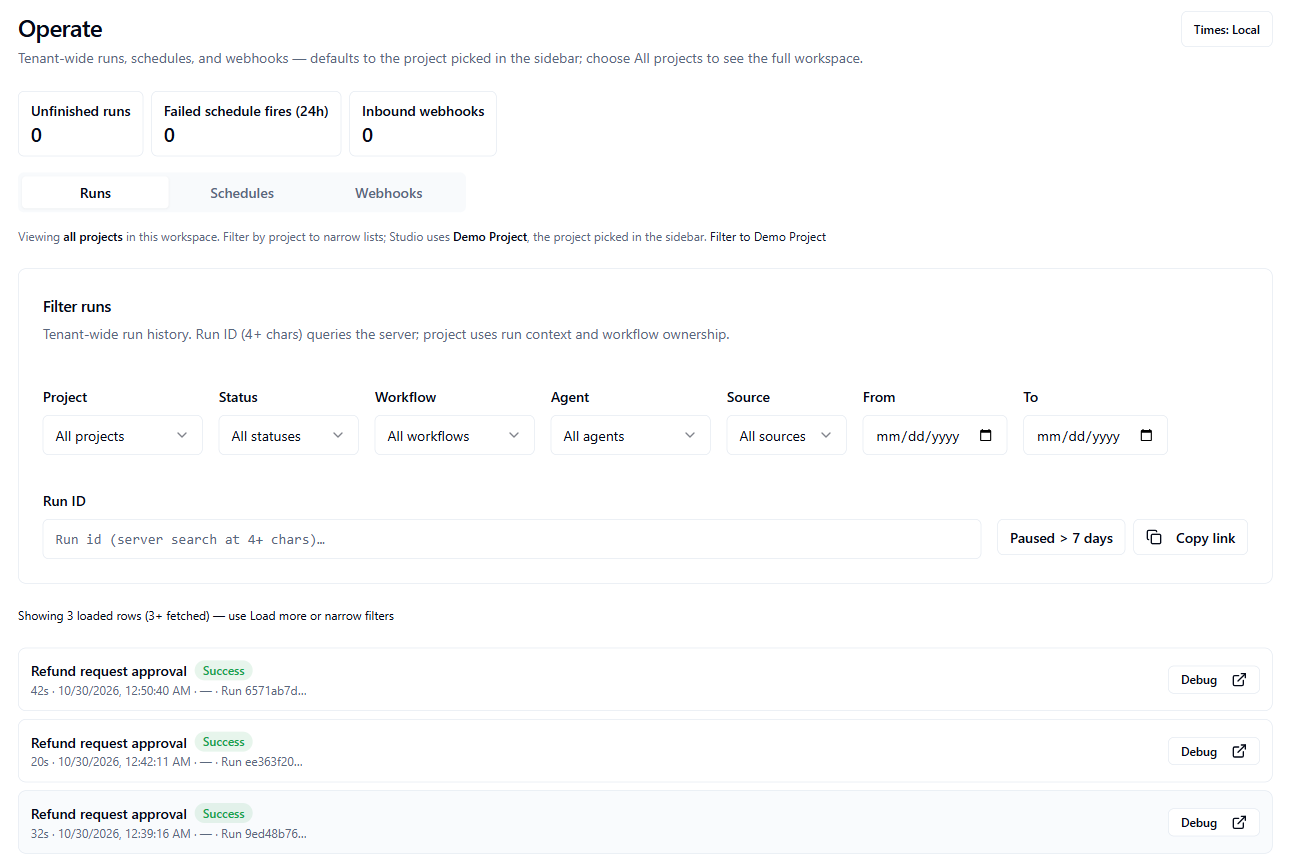
Use the Filter runs section. See the table below. Each change updates the list. Every filter except Run ID is also saved in the address of the page.
- Read the list
Each row is one run. A line under the filters says how many runs are loaded. When there are more, click Load more at the bottom. Each page holds 50 runs.
Filters
| Filter | Choices | Notes |
|---|---|---|
| Project | All projects, or one project | A project shows the runs of the workflows that belong to it. Changing the project clears the Workflow filter. |
| Status | All statuses, In progress, Paused, Unfinished, Completed, Failed / stopped | In progress means running, pending, queued, starting or draining. Unfinished adds paused runs. Failed / stopped also includes cancelled runs. |
| Workflow | All workflows, Agent sessions (workspace-copilot-session), or one workflow | When no project is selected, each workflow shows its project name after it. |
| Agent | All agents, or one agent | |
| Source | All sources, Chat / Agent sessions, Cron, Webhook, API, Manual | Choosing a source clears the Workflow filter. Source is locked to chat while Workflow is on Agent sessions. |
| From, To | A date each | Limits the runs to a date range. |
| Run ID | Part or all of a run ID | From 4 characters, the page asks the server to find the run. With fewer characters it only filters the runs already loaded. |
Two buttons sit next to the filters:
- Paused > 7 days shows only runs that have been paused for 7 days or more. See Stop old paused runs.
- Copy link copies the address of this view. See Share a filtered view.
On a narrow screen, the filters move into a Filter runs button that opens a sheet from the bottom.
Read a run row
| Part | What it shows |
|---|---|
| Workflow name | Click it to open the run, the same as Debug |
| Status badge | The run's status. Stalled replaces the badge for a run that looks active but has shown no progress for 2 hours or more. Hover for how long it has been quiet. |
| Needs approval | A person has to answer a task in this run |
| Details line | The project, the agent, how long the run took (a paused run shows Paused, since when, and how long it has been open), the start time, the source, and a short run ID |
Runs that come from an agent or a chat conversation (agent sessions) use plain wording for the status: Reply in progress, Turn complete or Waiting for reply.
The buttons on the right of a row depend on the run:
| Button | What it does |
|---|---|
| Pause, Resume | Pause a running run, or continue a paused one |
| Stop | Ends the run. The main button is a Force stop. The arrow beside it offers Force stop, Stop immediately and Stop gracefully. See Control a run. |
| Approve | Opens the waiting task in Command Center |
| Chat | Opens the run's chat conversation in a new browser tab. Shown only for runs that belong to a conversation. |
| Debug | Opens the run in Workflow Studio on the Events tab. For an agent run it opens the agent's run page instead. |
Stop old paused runs
A run can stay paused for days, for example when nobody answered a task. Use these controls to clean them up.
- Click Paused > 7 days
The Status filter changes to Paused and the list shows only runs that have been paused for 7 days or more. The page counts from the run's last progress, or from its start if it has none.
- Load the runs you want to stop
If the list says there are more runs, click Load more until the runs you want are on screen.
- Click Stop all in view
A bar above the list reads "N paused runs older than 7 days in this view." Click Stop all in view on that bar. Each of those runs gets a Force stop. A message tells you how many stop requests were sent.
Stop all in view does not ask for confirmation. It force-stops every paused run older than 7 days that is in the list, and a stopped run cannot be resumed. It does not reach runs that are not loaded, so check the list first.
The bar appears whenever such runs are in the list, even if you did not click Paused > 7 days.
Click Paused > 7 days again to turn the filter off.
Share a filtered view
Click Copy link. You see the message "Link copied". Send the link to a teammate. When they open it, the Runs page shows the same tab and filters.
The link keeps the project, status, workflow, agent, source, dates, and the Paused > 7 days setting. It does not keep the text in Run ID. The person who opens it needs access to the workspace and project. To build links by hand, see Keyboard shortcuts and links.
Schedules
The Schedules tab lists the cron schedules of the project you selected (or of all projects) and lets you add one. A schedule starts a workflow run on a timer. For how a schedule chooses what to run and who runs it, see External triggers and Trigger run identity.
Add a schedule
- Open the Schedules tab
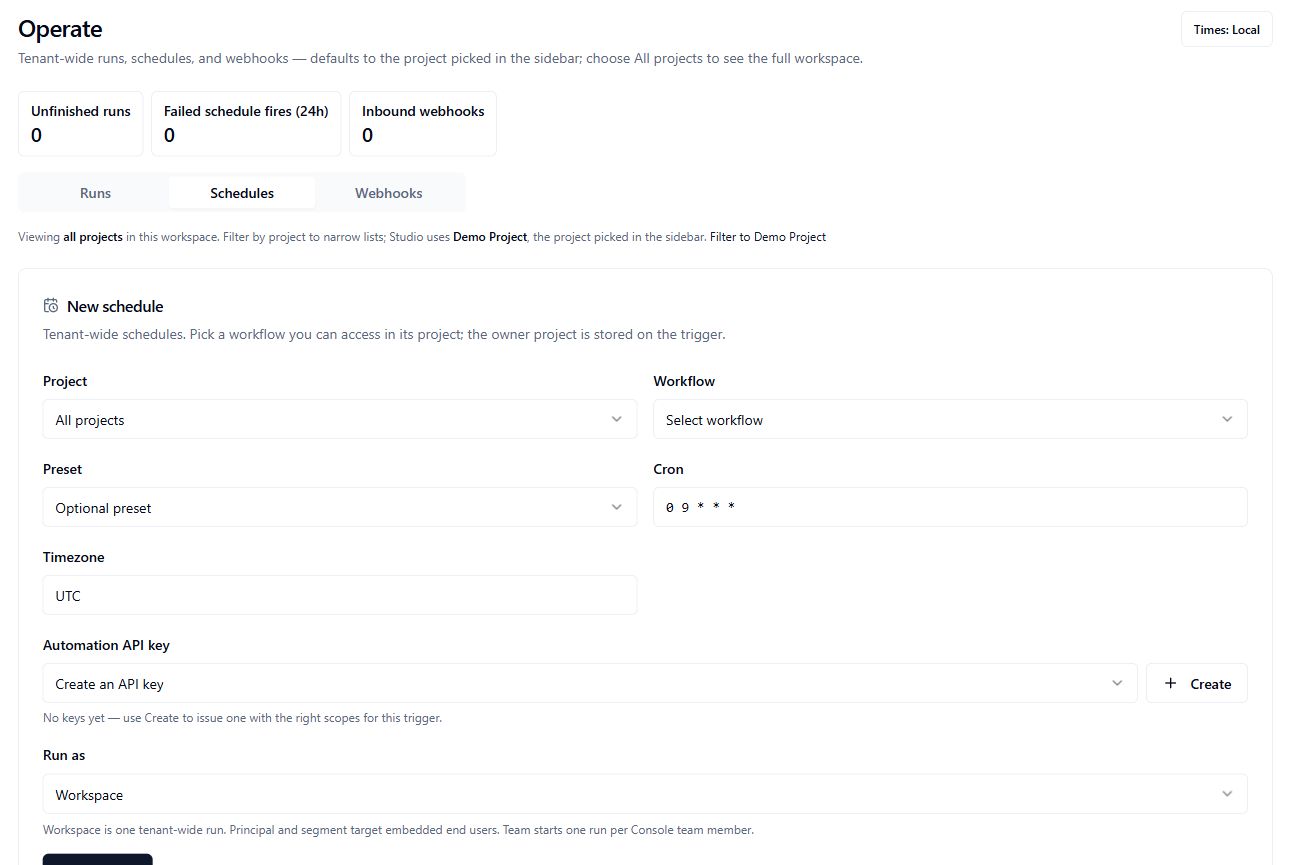
Click Schedules. The New schedule section is at the top.
- Choose the workflow
Pick a Project, then a Workflow in it. With All projects selected, each workflow shows its project name after it.
- Set the time
Pick a Preset (Daily 09:00, Every hour or Weekdays 09:00), or type a five-field expression in Cron. The Cron box starts as
0 9 * * *. The Timezone box starts asUTC. Change it to the time zone your expression is written for. - Choose the API key
Pick an Automation API key. The schedule uses it to start runs. If you are allowed to create keys, click Create next to the list to make one. If the key belongs to a different project than the workflow, a hint says "Prefer a key from the workflow's project to avoid failed fires."
- Choose who the run is for
Leave Run as as it is unless you know you need another choice. If the workflow takes start input, a form for it appears below. Fill it in.
- Add it
Click Add schedule. You see the message "Schedule created" and the schedule appears under Cron schedules.
Manage a schedule
Each row in Cron schedules shows the workflow name, the cron expression, the project, and the time of the next run (Next:). A Runs every minute or Runs every minute within the hour badge warns you about expressions that fire very often.
| Control | What it does |
|---|---|
| Switch | Turns the schedule on or off |
| Fires | Opens Fire history for this schedule: its latest 30 fires with the scheduled time, the status, and a link to the run |
| Studio | Opens the workflow in Workflow Studio |
| Bin icon | Opens Delete schedule?. Click Delete to stop all future fires. You see the message "Schedule removed". |
This tab does not edit the cron expression, time zone or starting input of a schedule that already exists. To change them, add a new schedule and delete the old one.
Check failed fires
A fire fails when the schedule could not start a run. An API key from a different project than the workflow can cause it. To see the failed fires, click the Failed schedule fires (24h) chip. The tab opens with a Failed schedule fires (24h) list at the top. If nothing failed, it says "No failed fires in the last 24 hours".
Each row shows the workflow, the scheduled time, and the error. If the error is empty, it says "Failed to start run". Click Open run to see the run when there is one, or Schedule fires to open that schedule's Fire history. Click Dismiss to close the list.
Webhooks
The Webhooks tab lists the inbound webhooks of the project you selected (or of all projects) and lets you add one. An inbound webhook is a web address that starts a run when an outside system calls it. For how the call must look, see Inbound webhooks.
Add a webhook
- Open the Webhooks tab
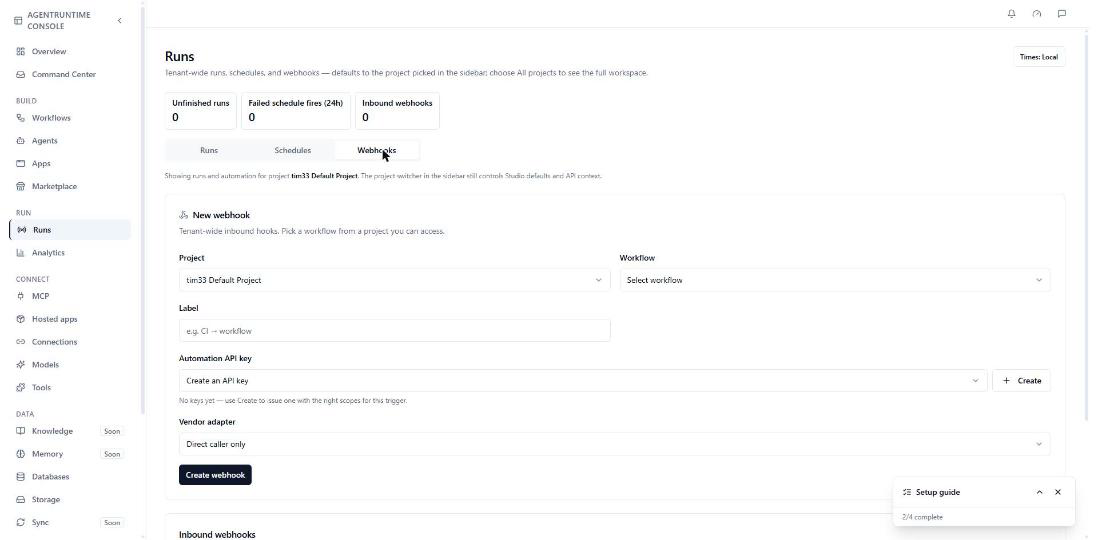
Click Webhooks. The New webhook section is at the top.
- Fill in the form
Pick a Project and a Workflow. Type a Label if you want one. Without it, the webhook is called "Inbound". Pick an Automation API key.
- Choose the sender
In Vendor adapter, leave Direct caller only for a CI job or your own backend. To receive calls from a connector, pick its adapter, shown as the adapter name followed by "(connector webhook)".
- Create it
Click Create webhook. If an API key secret box appears, paste the secret of the key you picked and click Create webhook again.
A dialog called Signing secret (copy now) opens. Copy the signing secret and store it with your automation. It cannot be retrieved later. The dialog also shows the web address. For a connector webhook it shows the connector webhook URL and a vendor secret too. Click Done when you have saved them.
Each webhook under Inbound webhooks shows its label, its workflow and the day it was created. Click Studio to open the workflow. Click the bin icon to open Delete webhook?. Click Delete, and senders that use the address stop working.
Common problems
| Problem | What to try |
|---|---|
| The Runs tab says "No runs in" a project, but you expect some | Runs from workflows in other projects are hidden while a project is selected. Click Show all projects. |
| Stop all in view is not on the page | It shows only when paused runs older than 7 days are in the list. Click Paused > 7 days, then Load more if needed. |
| A Run ID search finds nothing | Type at least 4 characters so the page asks the server. With fewer, it only checks the runs already loaded. |
| Schedules or Webhooks shows only a note | You need the project_contributor role or higher. See Roles and permissions. |
| A schedule did not start a run | Click Fires on its row. Then check the Failed schedule fires (24h) list and that its Automation API key is still active. |
Next steps
- Command Center: answer tasks and control runs that are in progress
- Runs and observability: the run lifecycle and step statuses
- External triggers: schedules, webhooks and events in Workflow Studio
- Keyboard shortcuts and links: build a link to a filtered Runs view