

Share a workflow
Share a workflow with your team, with people outside your organization, or with a script. Includes the side effect of creating a share link.
En esta página
The Share menu in Workflow Studio has one dialog with three tabs, one for each audience.
Who this is for: anyone who built a workflow and wants someone else to use it.
Open the Share dialog
- Open the workflow in Studio
Open your workflow in Workflow Studio.
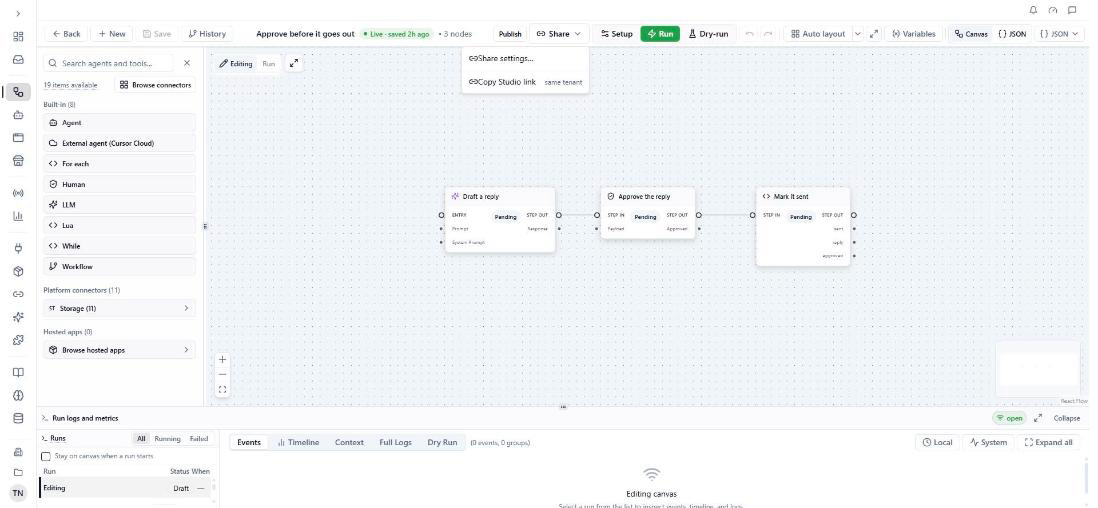
- Click Share, then Share settings
The Share menu has two items: Share settings… and Copy Studio link (same workspace). Share settings… opens the Share workflow dialog: "Choose who you're sharing with — we'll show the right link."
You should see: three tabs: Outside your org, Your team, and API / script.
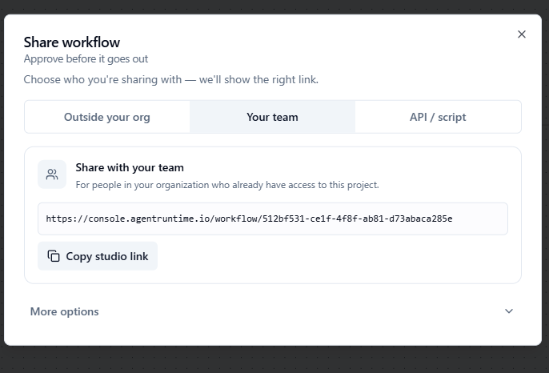
Your team
Use this tab for people in your organization who already have access to the project. It shows the Studio URL. Click Copy studio link and send it. Copy Studio link in the Share menu does the same.
People without access to the project cannot open the link. Add them first: see Invite a teammate.
Outside your org
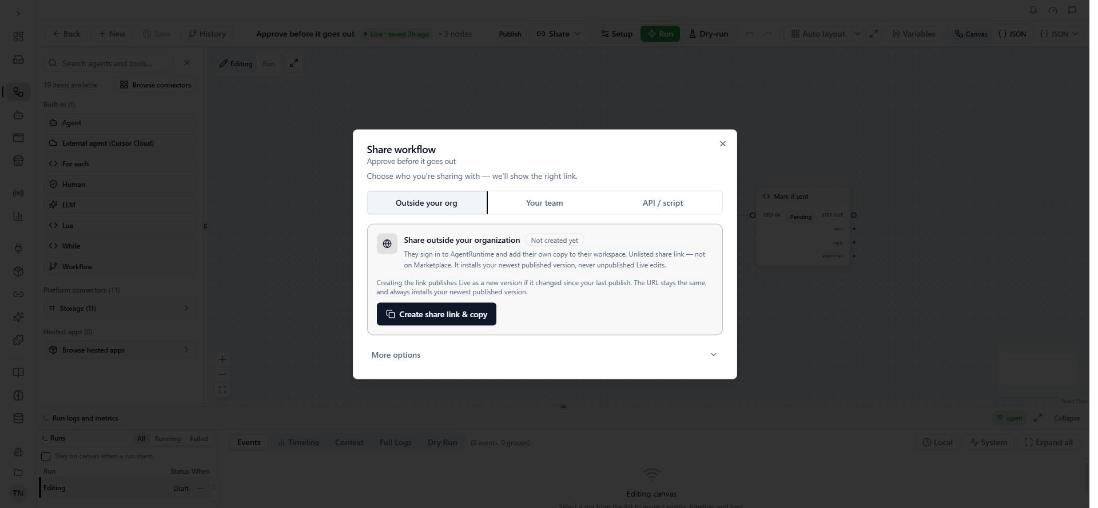
Use this tab to let someone outside your organization add their own copy of the workflow. The tab shows the status Not created yet until you create a link.
- Anyone who has the link signs in to AgentRuntime and adds their own copy to their workspace.
- The link is unlisted. The workflow is not on the Marketplace.
- The link installs your newest published version, never unpublished edits.
- The URL stays the same, and always installs your newest published version.
Creating the link can publish your workflow. If the editable copy (the "draft") has changed since your last publish, Create share link & copy publishes it as a new version first. The person who opens the link gets that version. The notice is in small print above the button. Check what you changed before you click.
The dialog does not show what a recipient will see, such as your prompts, step settings, and sample input values. It also does not show how to cancel a link; the dialog offers More options, which this documentation does not cover yet. Before you share, review the sample input in Setup and remove anything private. See Run setup.
To create a link, click Create share link & copy. The link is copied.
API / script
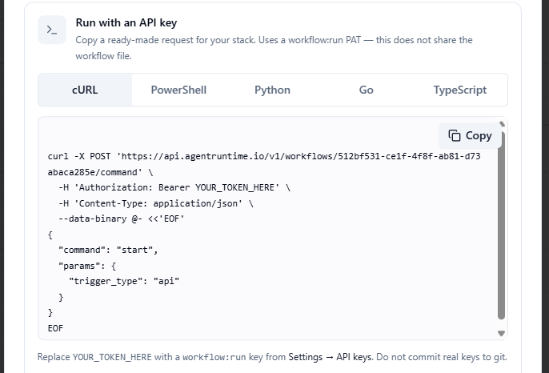
This tab gives you a ready-made request that runs the workflow with an API key. It does not share the workflow itself. See Run a workflow from code.
Which tab to use
| You want to | Use |
|---|---|
| Send a colleague who is in the project to the workflow | Your team |
| Let a customer or partner install a copy | Outside your org |
| Start the workflow from your own system | API / script |
Next steps
- Workflow Studio: the draft, History, and Publish.
- Run a workflow from code
- Variables and inputs