

Run your first workflow
Run a ready-made workflow from the Get started page in about a minute, then use it with your own email and calendar.
En esta página
The Get started page gives you a working workflow in about a minute. Each recipe comes with sample input and uses AgentRuntime's platform AI model, so you need no API key and no connected tool.
Who this is for: anyone new to AgentRuntime. The Quickstart is the longer path, where you connect a tool and build a workflow yourself.
Open Get started
Sign in to the Console. Until your workspace has a successful run, Overview shows the Get started page.
After that, Overview shows your workspace's metrics instead. To come back to Get started, click Get started under the welcome line at the top of Overview. Back to overview takes you back to the metrics.
Run a recipe
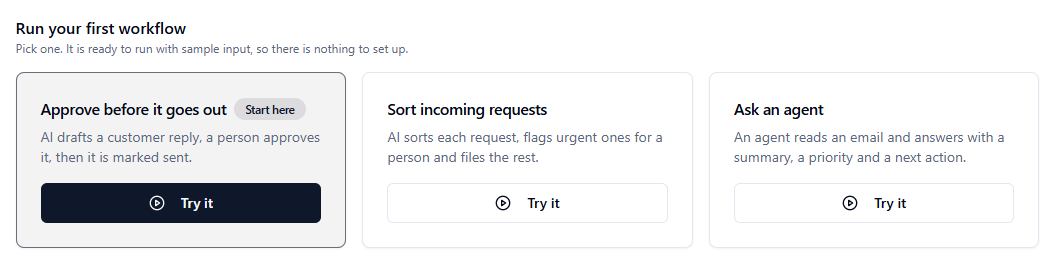
- Pick a recipe
Click Try it on one of the cards. If you are not sure, start with Approve before it goes out.
AgentRuntime creates the workflow in your project and opens it in Workflow Studio. Each click on Try it creates a new copy of the workflow.
- Run it
Click Run in the toolbar. The sample input is already saved in the workflow's Setup, so there is nothing to fill in.
You should see: each step turn green as it finishes, and the run's events in the panel under the canvas.
- Answer the task, if the run asks for one
Some recipes wait for a person. You can answer in either of two places, and the run carries on after either:
- In Studio. The panel under the canvas shows the task with Approve and Reject buttons. Click View Draft a reply next to them to read the reply the AI wrote.
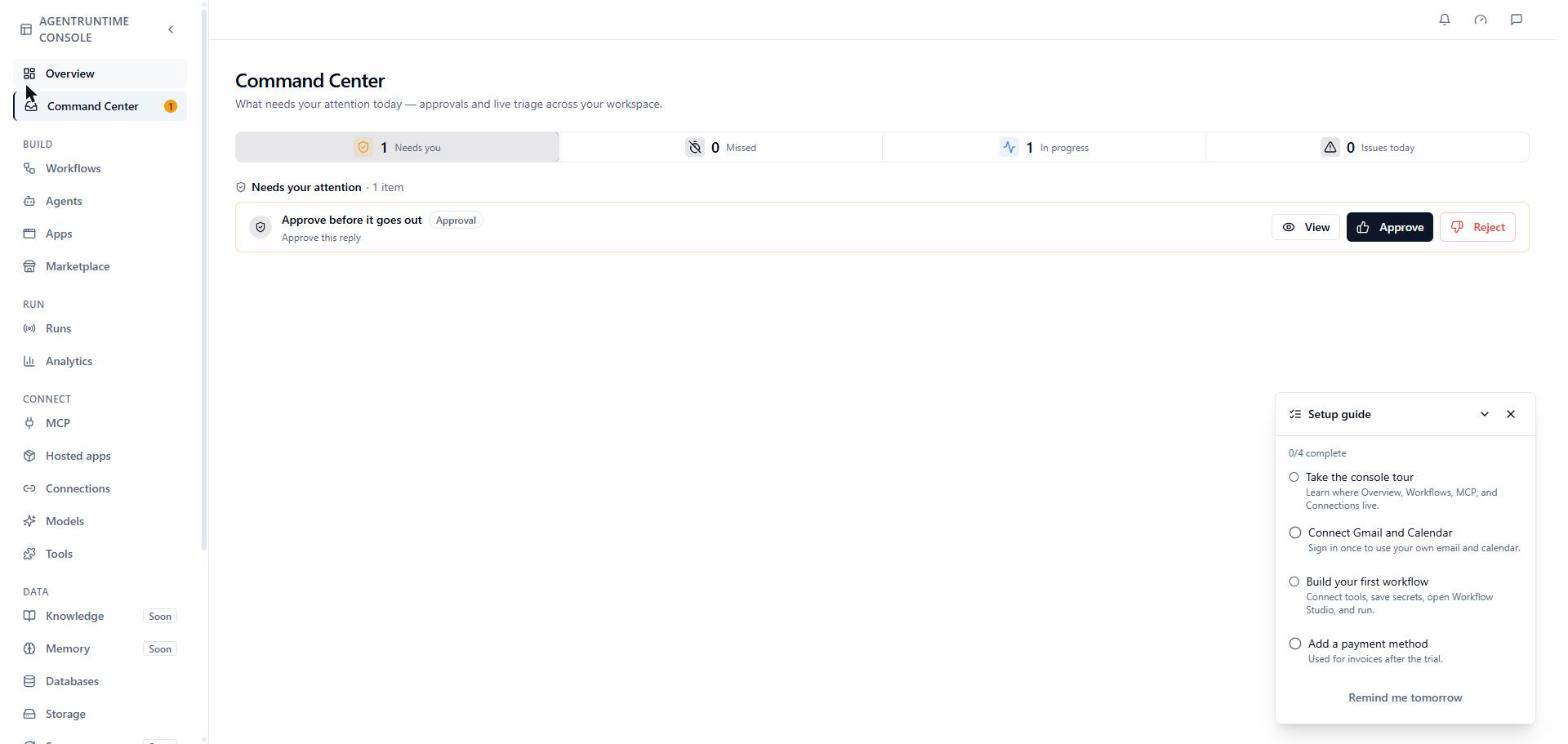
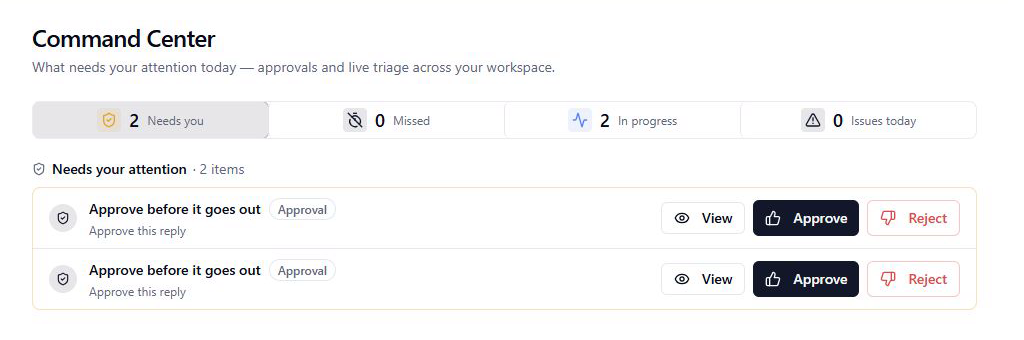
- In Command Center. The task also appears there, with a badge on Command Center in the sidebar. See Command Center.
AdvertenciaCommand Center does not show the reply. Its row and side panel only say Approve this reply. To read the draft before you decide, click Open in Studio, or answer from the panel under the canvas in Studio.
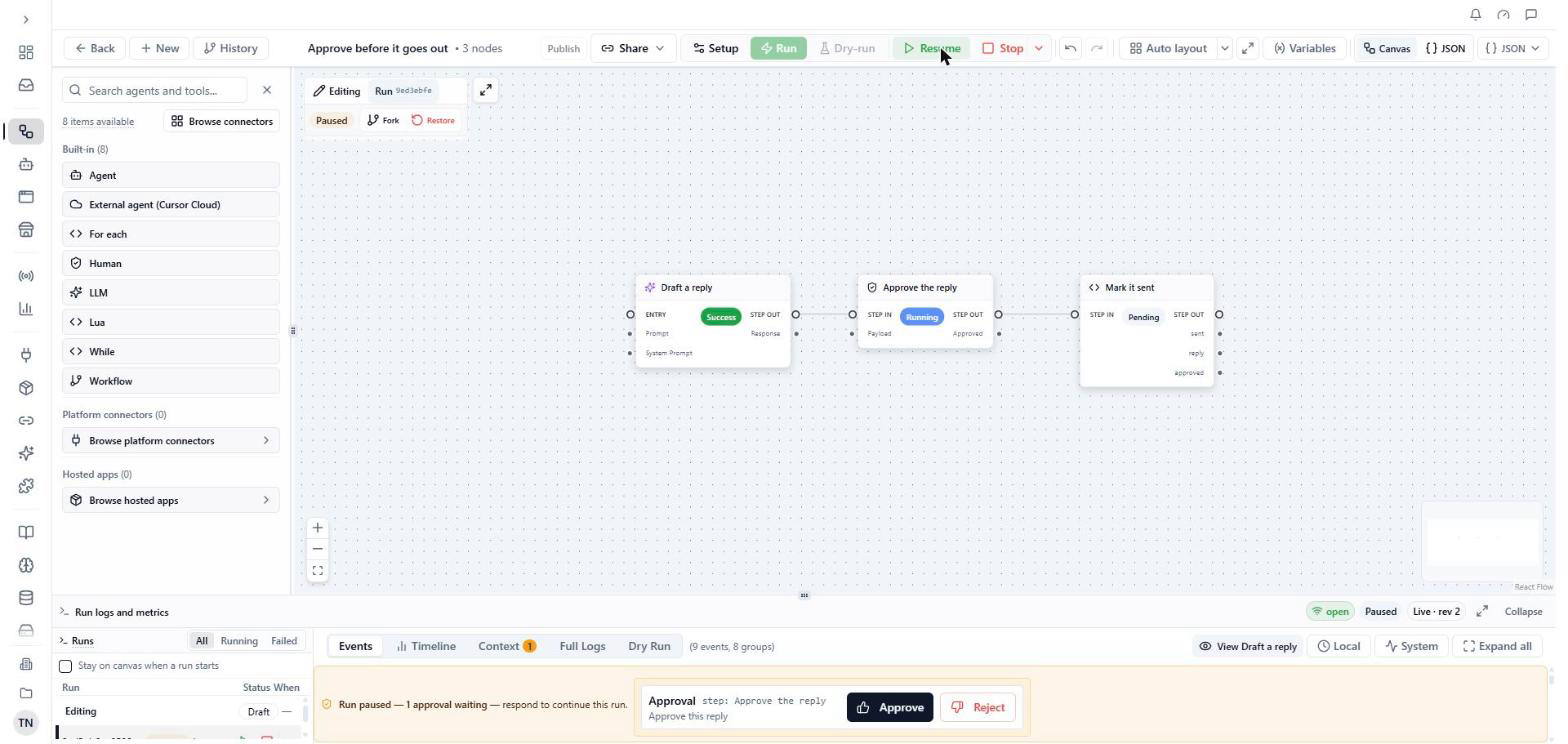
While a run waits for approval, Studio shows the step as Running, the run as Paused, and the bar under the canvas says 1 approval waiting. These all mean the same thing: the run is waiting for you. The Resume button in the toolbar is not the way to answer. Use Approve or Reject.
| Recipe | What it does | What you do |
|---|---|---|
| Approve before it goes out | Draft a reply writes a reply to a sample customer complaint. Approve the reply waits for a person. Mark it sent runs only after the reply is approved. | Click Approve. You can approve a run you started yourself. |
| Sort incoming requests | Classify asks AI for a category (billing, bug, question, or other) and whether the request is urgent. Read the answer turns that answer into fields. An urgent request goes to Flag urgent, which asks a person to look at it. Anything else goes to File the others. | If the request is urgent, an Urgent request task appears. Approve it to finish the run. The sample request is an urgent one. |
| Ask an agent | Ask the agent gives a sample email to an agent that answers in three fields: summary, priority, and next_action. The recipe creates this agent, Email summarizer, under Agents, or reuses it if it is already there. | Nothing. Read the answer in the step's output. |
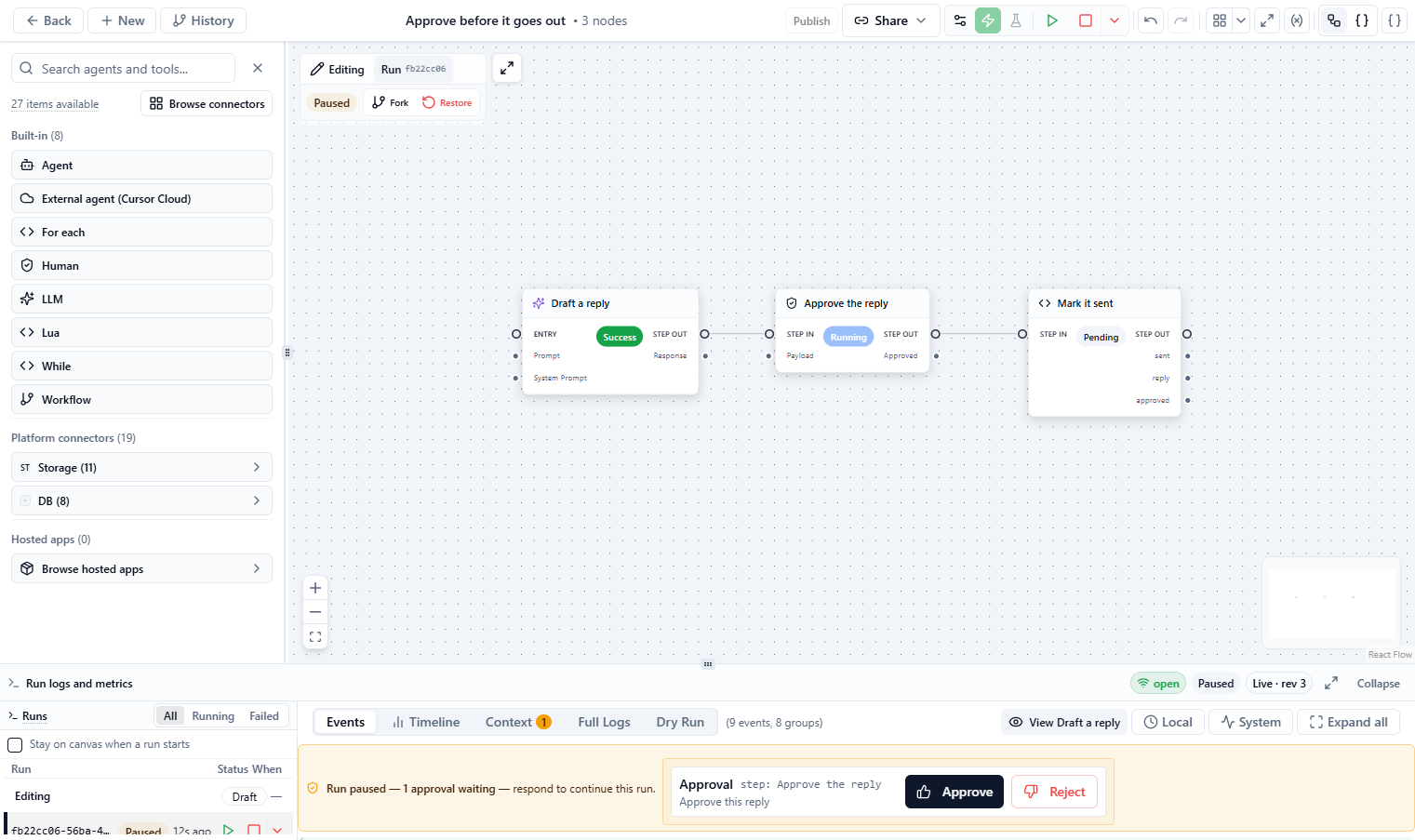
A rejected approval ends the run as Success. If you click Reject on Approve the reply, Mark it sent does not run, so nothing is "sent". The run still finishes with a green Success in Runs and in Studio, and Analytics counts it as a success. What happens after a rejection is set by the When rejected setting on the Human step. See Human tasks.
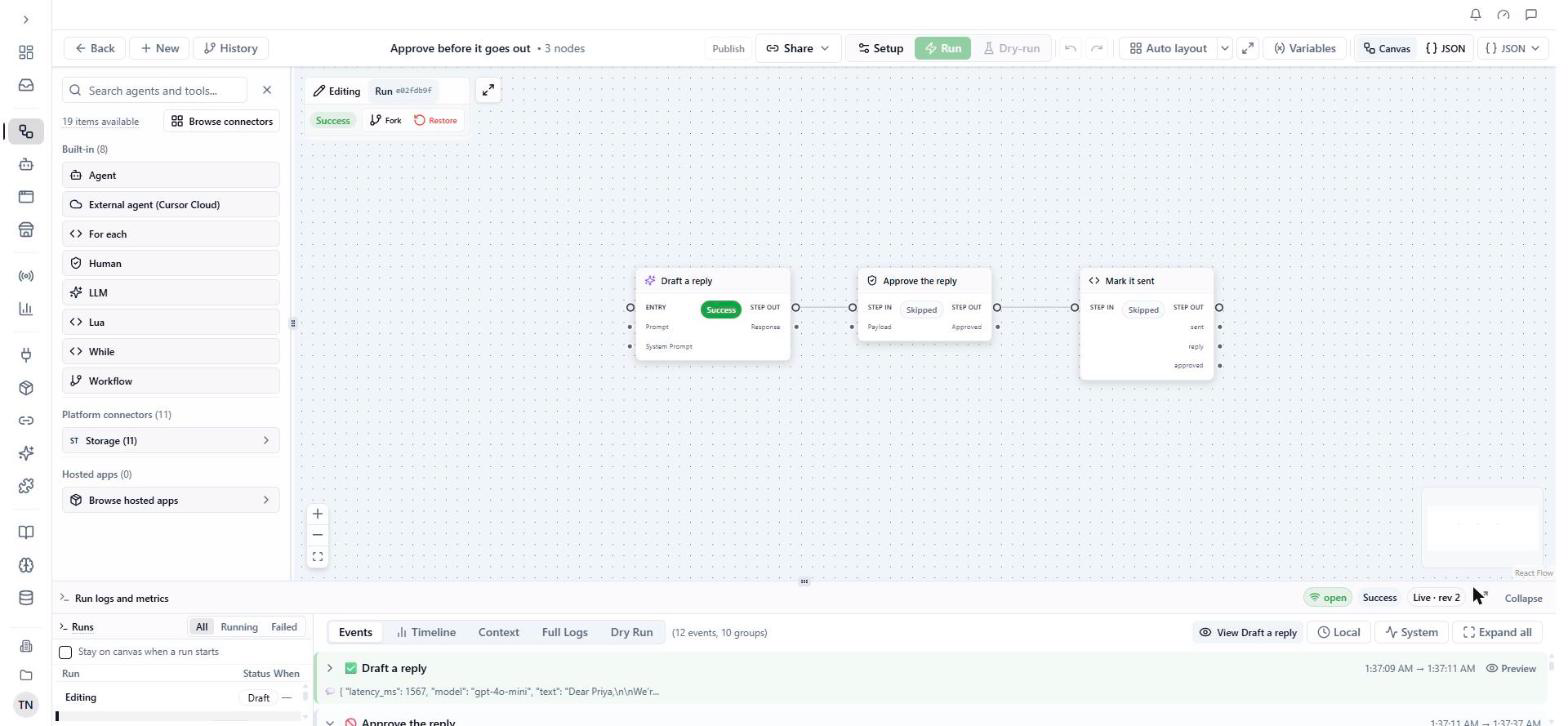
A recipe is an ordinary workflow. Change its steps, its prompt or its sample input as you like. Workflow Studio shows how.
After your first successful run
Overview shows a card that starts with Your first workflow ran., followed by one suggested next step for the recipe you ran:

| Recipe | Suggested next step | Button |
|---|---|---|
| Approve before it goes out | Turn it into a form your team can use | Build a request form opens Apps |
| Sort incoming requests | Run it on real messages by giving it a web address other tools can call | Open the workflow |
| Ask an agent | Give the agent a tool, so it can look things up as well as read | Open your agents |
| Watch my inbox | Change how often it checks, or what it looks for | Open the workflow |
| Morning brief | Change the time it arrives | Open the workflow |
The card appears only in the browser you installed the recipe from. Click × to hide it.
Use your own email and calendar
Under Make it yours, sign in once with Google, and two more recipes work with your own Gmail and Google Calendar. They only read your email and calendar: the results appear as tasks in Command Center, and nothing is sent outside AgentRuntime.
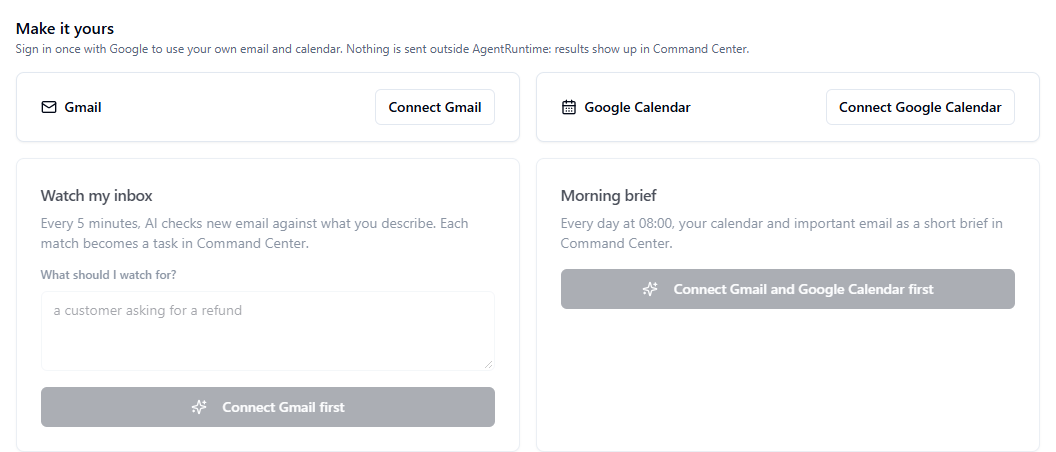
- Connect Gmail and Google Calendar
Click Connect Gmail. A sign-in window opens: sign in with your Google account and allow access. Do the same with Connect Google Calendar if you want the morning brief.
You should see: Connected on the card. The connection is also listed on Connections, as Gmail or Google Calendar. It runs through Hosted apps.
- Start a recipe
- Watch my inbox needs Gmail. Under What should I watch for?, describe the email in plain words, for example "a customer asking for a refund", and click Start watching.
- Morning brief needs Gmail and Google Calendar. Click Schedule it.
The new workflow opens in Workflow Studio.
| Recipe | When it runs | What you get |
|---|---|---|
| Watch my inbox | Every 5 minutes | AI checks the email that arrived since the last check against your description. Each match becomes a task in Command Center with the sender, the subject, a snippet, the reason it matched, and a link to the email. |
| Morning brief | Every day at 08:00, in your browser's time zone | AI writes a short brief of today's calendar and your important or unread email from the last 24 hours. It arrives as a task in Command Center. |
Each email is checked once: every check covers the 5 minutes before it starts. If a check does not run, the email from those 5 minutes is not checked later.
Schedules need an API key
Both recipes run on a schedule, and a schedule runs with an API key from Settings → API keys (see Authentication).
- If your workspace already has an active key that can run workflows, the recipe uses it without asking.
- If not, the Console asks Create an API key for schedules? Click Create key and continue to create a key named Schedules and finish the setup. The key can read and run workflows and call their tools. Cancel stops without creating anything.
- If you are not allowed to create API keys, you see This recipe needs an API key. Ask a workspace admin to create one, or to start the recipe for you.
Double-clicking Run starts two runs
Clicking Run twice quickly starts two runs in the same second, and each one creates its own approval task. Click Run once and wait. If you started two by accident, reject or stop the extra one.
Other ways to start
- Connect WhatsApp opens Connections. See WhatsApp.
- Start from a blank canvas and Browse all recipes open the Find a workflow recipe dialog in Workflow Studio. Choose Blank canvas to start empty, or pick a recipe. See Build your first workflow.
The Setup guide
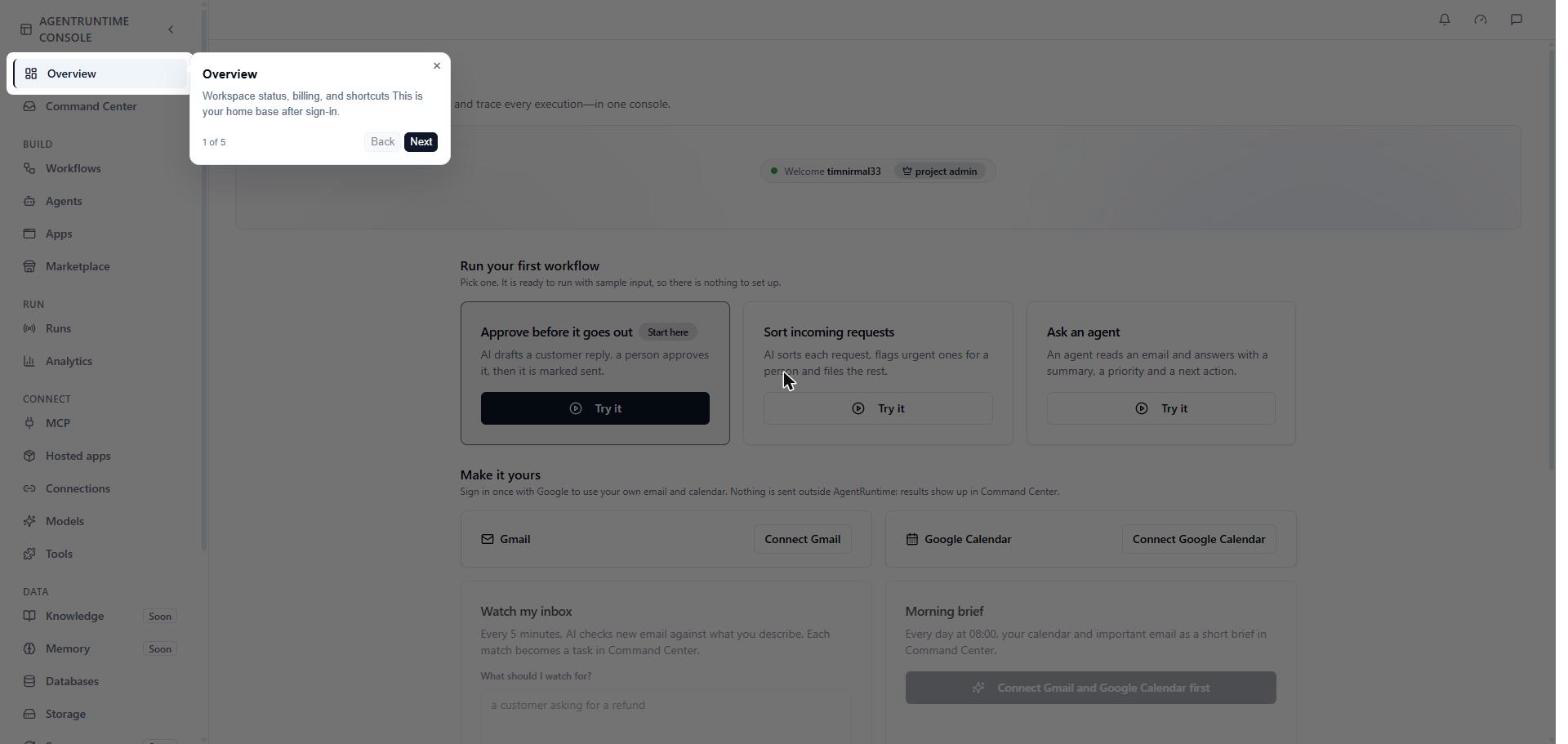
The Setup guide panel in the corner of the Console lists what is left to do: Take the console tour, Connect Gmail and Calendar (which opens Get started), Build your first workflow, and Add a payment method. Finished items are crossed out. Remind me tomorrow (and the ×) hides the panel until the next day. Don't show again hides it for good in this browser; to get it back, open Profile, General, Product tours and click Open setup guide. On a phone the panel starts collapsed as a small bar.
Common problems
| Problem | What to try |
|---|---|
| Start watching reads Connect Gmail first | Click Connect Gmail above it and finish the Google sign-in. |
| Schedule it reads Connect Gmail and Google Calendar first | Connect both, then click Schedule it. |
| "This recipe needs an API key" | Ask a workspace admin to create an API key, or to start the recipe. |
| "Gmail isn't in the app catalog yet." (or Google Calendar) | That Hosted app is not available in your workspace yet. Contact support. |
| The run fails | Open the step that failed in the run's events. If the workspace is out of credits, see Billing and credits. For other errors, see Troubleshooting. |
Next steps
- Quickstart: connect a tool and build a workflow yourself.
- Command Center: answer tasks and watch runs.
- Key concepts: workspaces, projects, workflows, and runs.