

Command Center
See what needs your attention across the workspace: approvals, replies, missed tasks, runs in progress, and runs that stopped with errors.
En esta página
Command Center is the inbox for everything running in your workspace. Open it from the Console sidebar (Command Center, at /command-center).
Who this is for: people who answer human tasks (approvals, replies, questions) and people who keep an eye on runs.
What you will do on this page: answer tasks, follow up on missed ones, pause or stop a run, and find out why a run stopped.
What you see
A strip of four chips runs across the top. Each chip shows a count; click one to switch the list below it.
| Chip | What the list shows |
|---|---|
| Needs you | Human tasks waiting for a person: approvals, replies, and questions from agents. List title: Needs your attention. |
| Missed | Tasks that nobody answered before their timeout, and replies that didn't reach the contact, from the last 7 days, that nobody has followed up yet |
| In progress | Runs that are running, starting, queued, paused, or stopping. List title: In progress. |
| Issues today | Runs that failed, were stopped, or were cancelled in the last 24 hours. List title: Stopped with errors. |
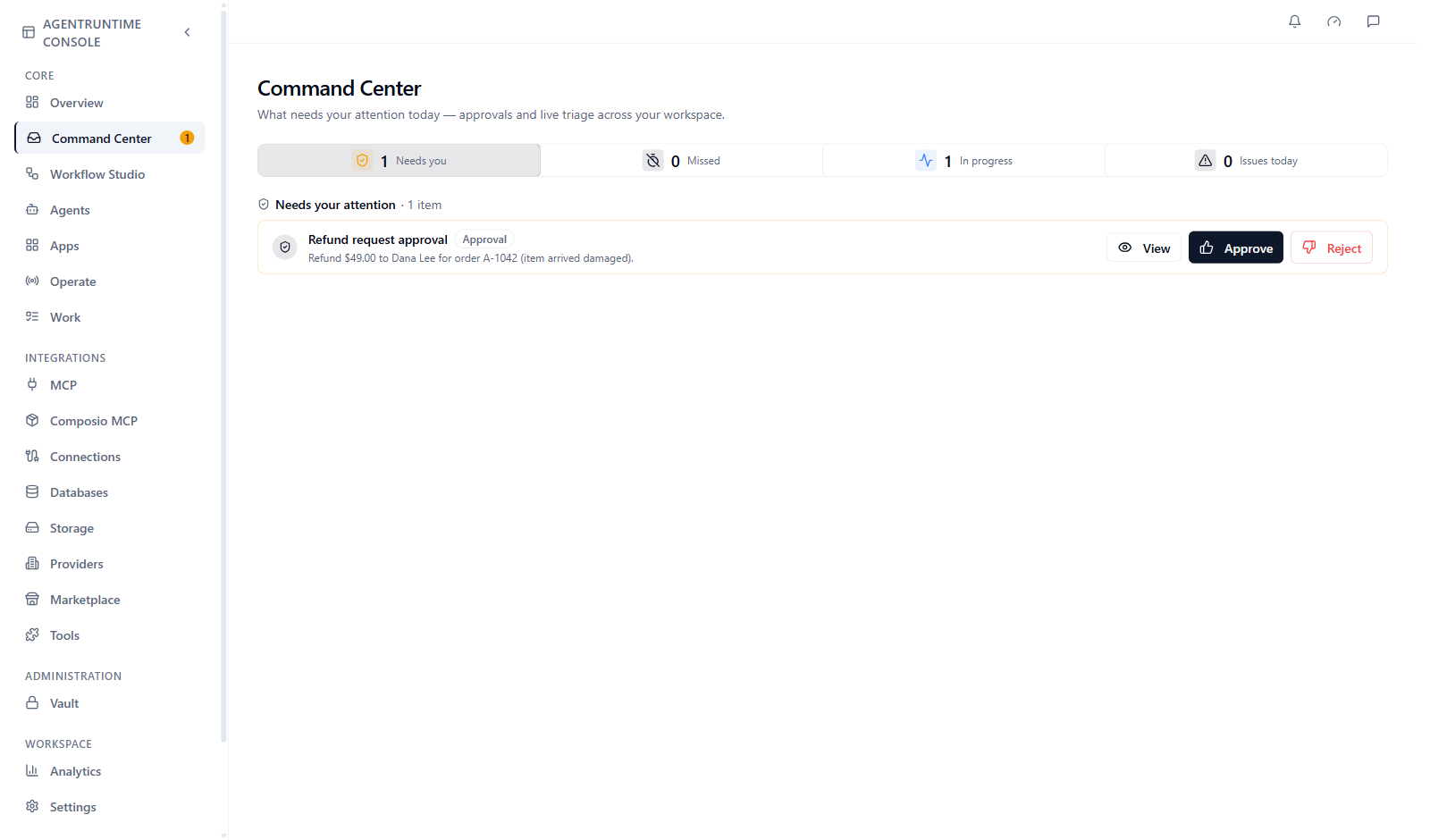
When you open the page, Command Center picks the first chip that has something in it: Needs you, then In progress, then Issues today. The page refreshes by itself: every 3 seconds while something is waiting or running, otherwise every 30 seconds (the Missed list every minute).
Needs you: answer tasks
Tasks are listed oldest first, so the person who has waited longest is answered first. A task waiting more than 10 minutes is highlighted. Each row shows the workflow, a label for the kind of task, and a short line of context. If you have more than three tasks, filter chips appear: All, Replies, Questions, Approvals.
There are three kinds of task:
| Kind | What you do |
|---|---|
| Approval | Click Approve or Reject. Reject opens an optional Reason box. If the workflow sends rejected work back for changes, the button reads Send back and asks what should change. |
| Reply needed | Click Reply, write your message, and click Send. Use Attach file to add files. On a customer chat, Hand back to the agent returns the conversation to the agent without a reply, and the agent answers what the customer wrote meanwhile. Don't reply closes the task without sending anything, and those messages are not answered. |
| Question from the agent | Click Answer, type your answer, and click Send answer. End run stops the run instead. |
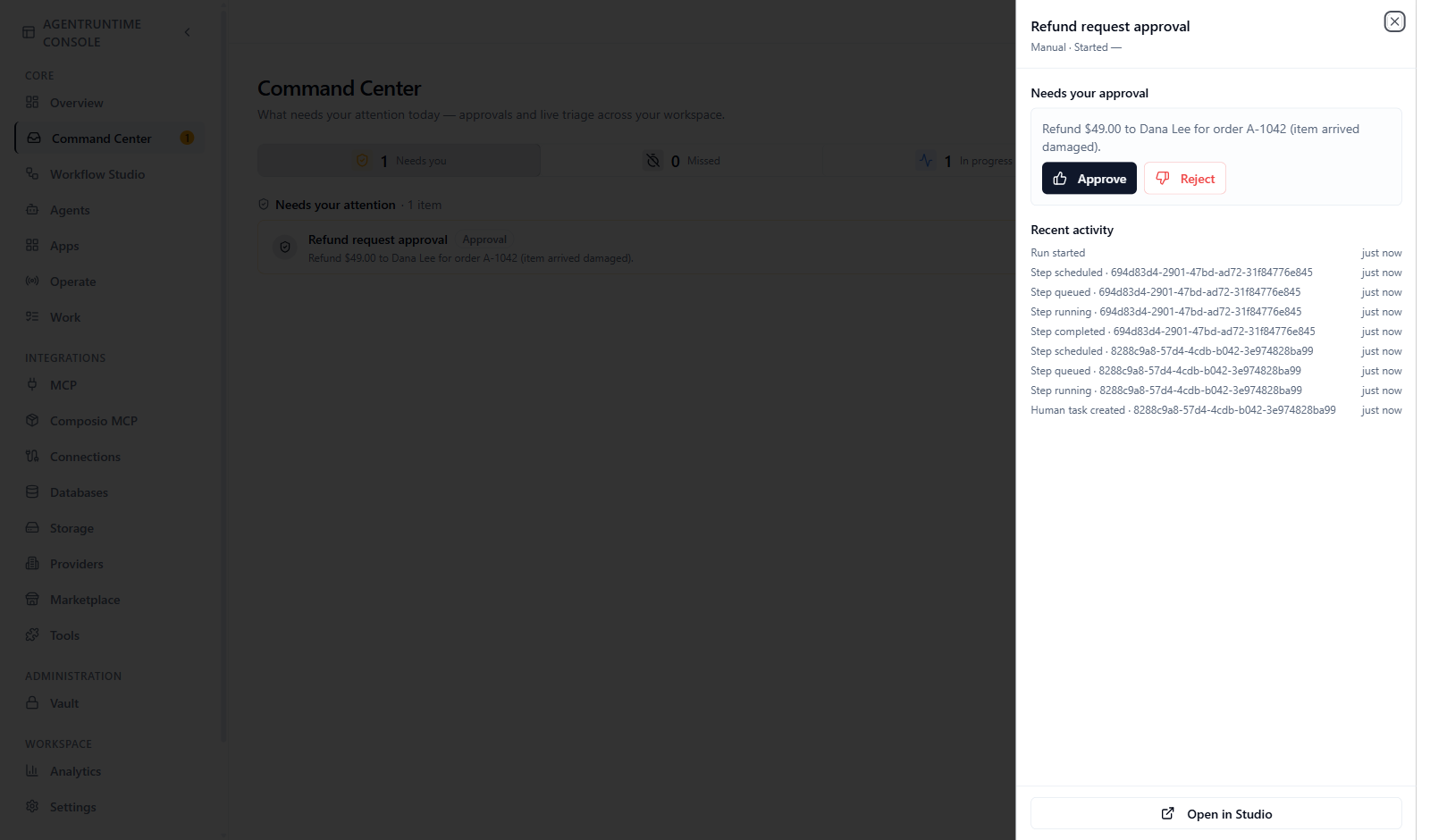
Command Center does not show what you are approving. An approval row and its side panel show the workflow name, the label Approval and a line such as Approve this reply. The text itself, for example the AI's draft reply, is not shown here today. To read it first, click Open in Studio in the side panel and use View next to the approval bar under the canvas, or answer from there. Two runs of the same workflow produce two rows that look identical, with no time or run ID.
What happens when you approve or reject
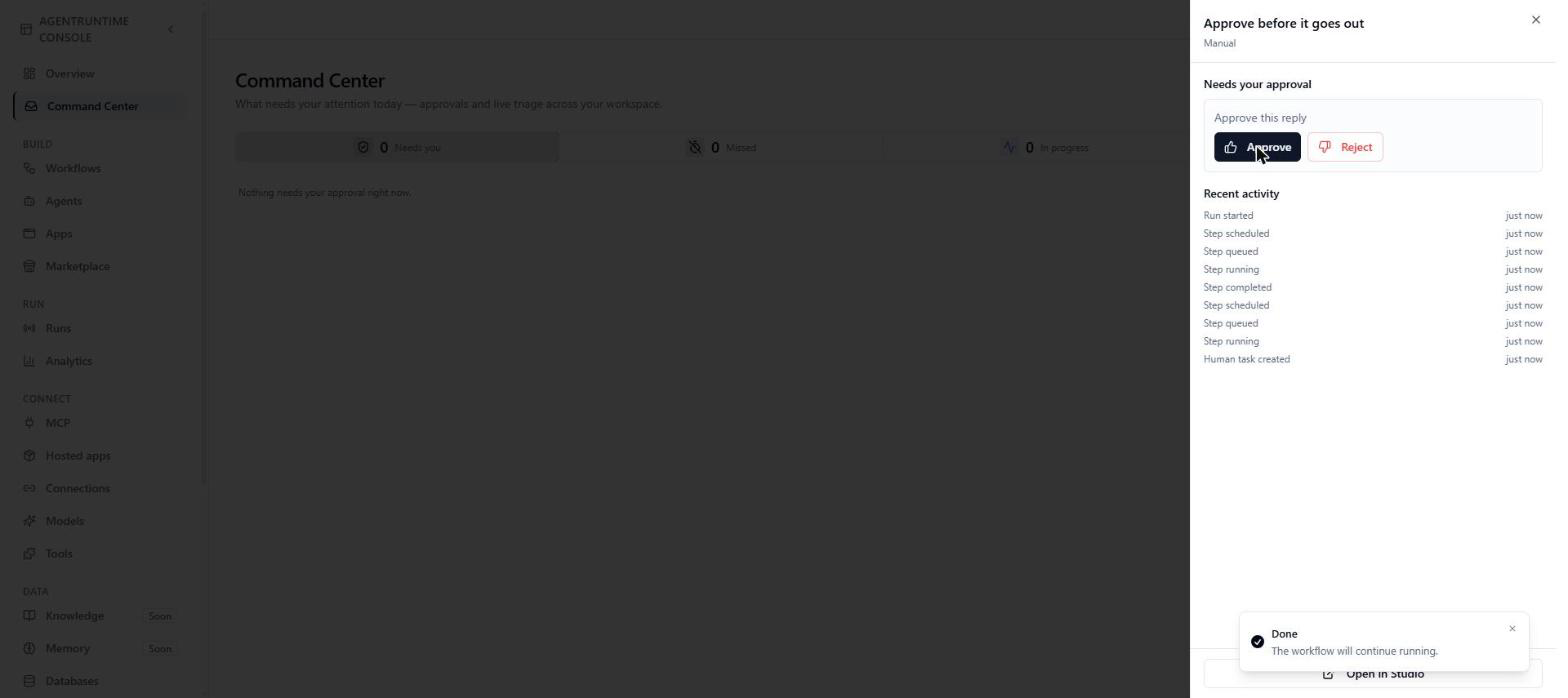
- Approve continues the run. A short message appears: Done and The workflow will continue running. It does not say what the run did next.
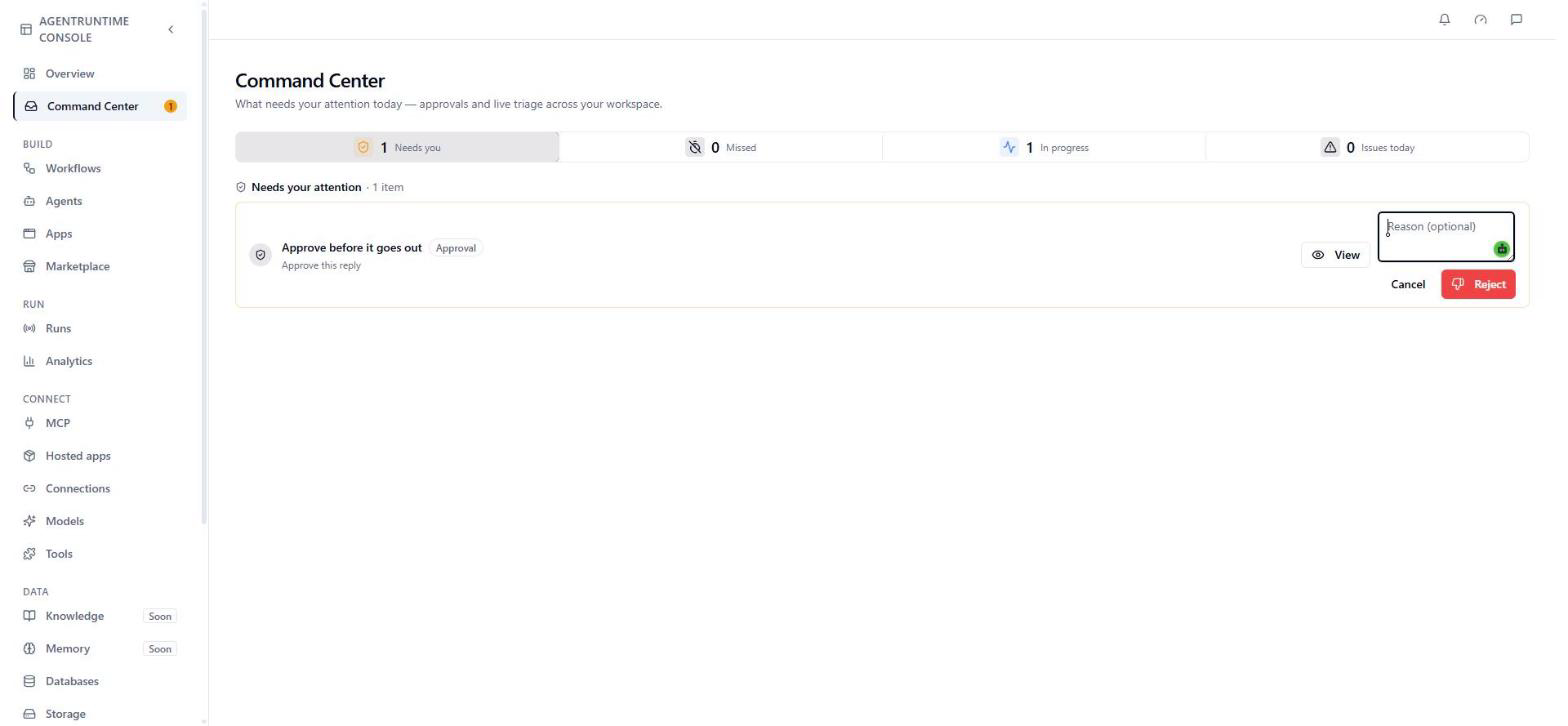
- Reject first turns the row into an optional Reason (optional) box with Cancel and a red Reject. Click Reject again to confirm. The message reads Rejected and says the run goes on according to the approval's When rejected setting.
A rejected run ends as Success, not as failed or rejected. The step after the approval is marked Skipped and the run's status is Success, in Runs, in Studio and in Analytics. What runs next after a rejection is set by the When rejected setting on the Human step. See Human tasks.
The side panel can stay open after you decide, with Approve and Reject still showing, while the list behind it says Nothing needs your approval right now. Close the panel. If you click Approve a second time, you see Could not save your decision and this task was already completed. Nothing is wrong: the first click worked. An approval cannot be undone.
To send a reply or an answer from the keyboard, press Ctrl+Enter (Cmd+Enter on a Mac) in the text box. See Keyboard shortcuts and links.
When the workflow ties a task to a screen of an app, its row also shows an Open app button, next to View. Click it to open that app screen. See Apps.
An agent can also leave a The agent's assumption: it carried on with a guess and asks you to check it. Click Looks right, Dismiss, or Correct it (then Send correction). The run does not wait for these.
For tasks that come from a conversation with a contact (for example on WhatsApp), the row has a Conversation button. It opens the whole thread with that contact so you can read it before you answer. See Conversation sessions.
Click View on any row to open the run in a side panel (see Look at a run). After you answer, the task leaves the list and the run continues.
Answering here is the same as answering inside Workflow Studio or through the API. See Human tasks.
Missed: follow up on tasks nobody answered
A task can close on its own when its timeout runs out: it was handed back to the agent, approved or rejected automatically, could not be escalated, or simply expired. The person who should have answered may never know. The Missed list keeps these for 7 days.
A hand-off you answered also comes back here when your reply doesn't reach the contact. The channel accepts a reply and reports a minute or so later that it wasn't delivered. On WhatsApp this happens when more than 24 hours have passed since the contact's last message: only an approved template can reach them then. The row shows Reply not delivered and the reason.
Each row shows the workflow, how the task ended (for example Handed back, Approved automatically, Rejected automatically, Not escalated (no backup approvers), Expired, Reply not delivered), how long it waited or why the reply wasn't delivered, and the last messages the contact sent while they waited.
- Conversation opens the contact's thread (read-only until you send a template from it, see below).
- View opens the run.
- Send template (on Reply not delivered rows) sends the contact an approved message template, which reaches them even after the 24-hour window has closed. See Send a template when your reply didn't arrive.
- Mark followed up removes the task from the list once you have dealt with it, for example by calling the customer back.
Send a template when your reply didn't arrive
A free-form reply is rejected once more than 24 hours have passed since the contact's last message. An approved template message is allowed. Open the row's Send template:
- Pick a template
Template lists the templates your channel has approved, each with its language and category.
- Fill in its values
A template's text has numbered placeholders. Enter a Value for each one, and check Preview, which is what the contact will read.
- Send
Click Send template. The message is added to the contact's conversation as sent by you, with the label Template: name, and shows Sent, Delivered or Read as the channel reports it. The task is marked followed up and leaves Missed.
The channel may charge for template messages, so check your channel's pricing. When the contact answers, their reply opens a new conversation window and continues the session as any message does.
If the dialog says the workflow's session has no template sending set up, turn it on in Workflow setup → Sessions → Templates. See Send a template to a contact.
In progress: watch and control runs
Runs are grouped by workflow. Use the Filter… box to find one workflow, and Load more runs to see older ones. Each run shows a status:
| Status | Meaning |
|---|---|
| Running | Steps are executing |
| Paused | Paused by a person, or waiting for a person. No new steps start until it resumes or the task is answered. |
| Pending, Queued, Starting | Waiting to start |
| Stalled | Looks active but has shown no progress for 2 hours or more |
Run controls
| Control | What it does |
|---|---|
| Pause | Stops new steps from starting. Steps already running can finish. People can still answer the run's tasks; the run carries on from there when you resume it. Available while a run is Running. |
| Resume | Continues a paused run |
| Stop | Ends the run. The main Stop button is a Force stop. The arrow beside it offers Force stop, Stop immediately, and Stop gracefully. |
| Pause all, Resume all, Stop all | The same, for every run in a workflow group |
Stop gracefully lets steps that are already running finish (their results are not recorded), never starts the rest, and ends the run as Stopped. Stop immediately and Force stop also cancel the calls in flight: tool calls, model calls, Lua scripts and loops. An agent step stops at its next tool call. A stop does not undo what a call already did, and does not stop child workflows. A stopped run cannot be resumed. See How runs execute.
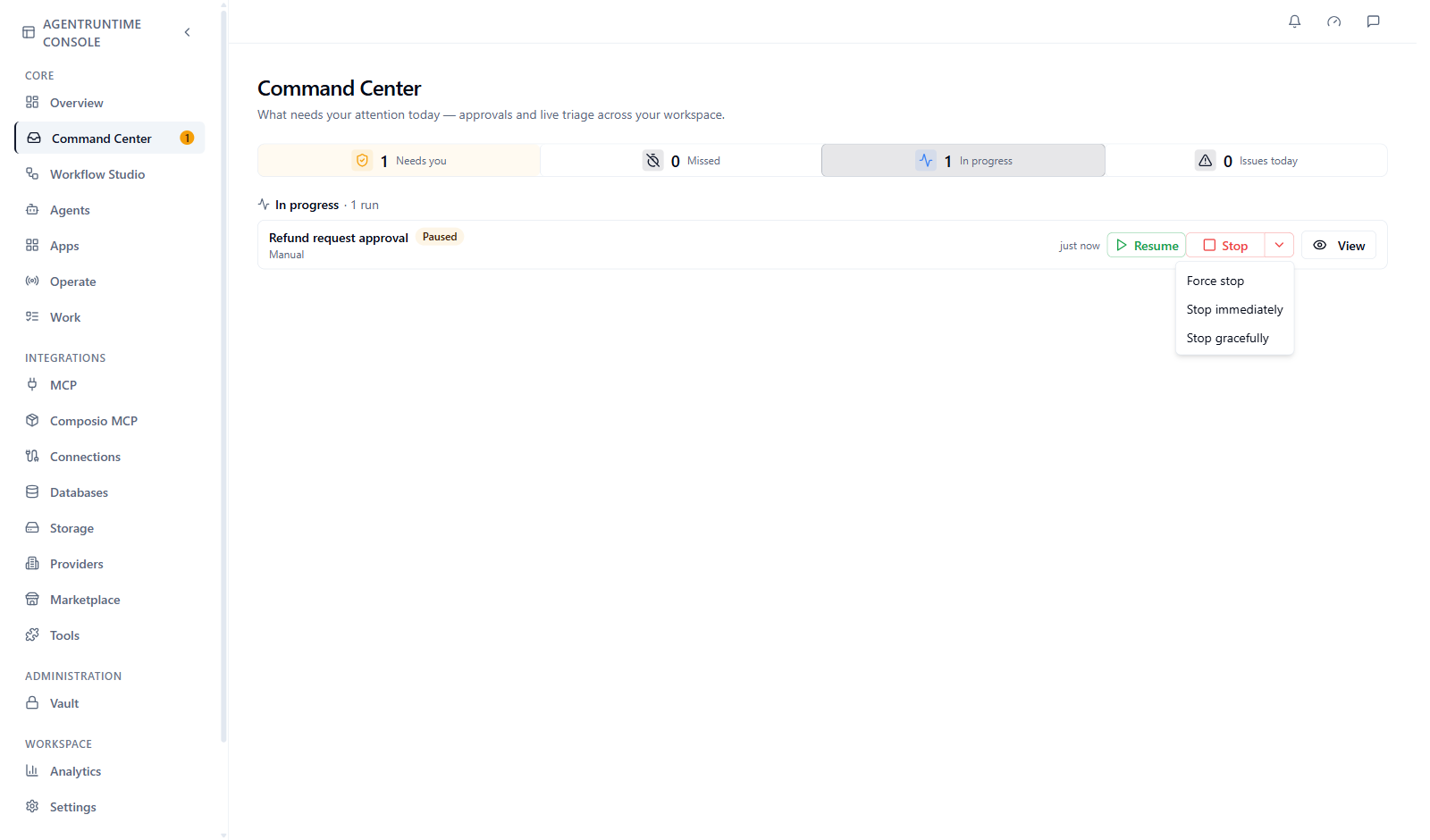
A run waiting on a person is not stuck. It is designed to wait until the task is answered.
Issues today: why did a run stop?
Runs that failed, were stopped, or were cancelled in the last 24 hours appear under Stopped with errors, with a short reason:
| Reason shown | What it means |
|---|---|
| MCP tool error | A tool returned an error |
| LLM request failed | A model call failed (key, model, or provider problem) |
| Insufficient credits | The workspace is out of credits |
| Run timed out (no progress) | The run made no progress within the allowed time |
| Graceful stop timed out | A graceful stop did not finish in time |
| Stopped by operator | A person stopped the run |
| Step failed, Human review step failed, Workflow failed | A step, a human task, or the workflow itself failed |
| Service unavailable, Could not reach workflow service | A temporary problem on the AgentRuntime side; start a new run |
Click View to see the step-by-step events. See Troubleshooting for fixes and Run recovery for what you can do next.
Look at a run
View opens a side panel with the workflow name, how the run started (for example Manual), any task waiting on you (with its Approve and Reject buttons), and Recent activity, a short list of the latest run events (for example Step scheduled, Step running, Human task created). The panel does not show the text a task asks you to approve; that is only in Workflow Studio. For runs that are in progress or have stopped, the panel also shows the status, any problem, and the run controls. Click Open in Studio to see the full run in the Events tab.
When a run looks stuck
- Check its chip. If it is in Needs you, it is waiting for a person. Answer the task.
- If it is Paused, click Resume (unless you paused it on purpose).
- If it shows Stalled, click View and read the last events in Recent activity. A slow tool or model call is the usual cause.
- If nothing moves, click Stop and start a new run.
- If the same step keeps failing, check its connection and your credits. See Troubleshooting.
API equivalents
| Console action | API |
|---|---|
| List waiting tasks | GET /v1/tasks/pending |
| List missed tasks | GET /v1/tasks/missed |
| Mark a missed task followed up | POST /v1/tasks/{task_id}/follow-up |
| Complete a task | POST /v1/workflows/{id}/runs/{runID}/tasks/{task_id}/complete |
| List runs | GET /v1/runs |
| Stop, pause, resume | POST /v1/workflows/{id}/command with stop, pause, or resume |
Next steps
- Human tasks: build approval and reply steps
- Runs and observability: the run lifecycle and step badges
- Run recovery: after a failure
- Workflow patterns